
Overview
To check if your Linux server has been hacked, look in five places: recent logins (last and the SSH log), user accounts and SSH keys, running processes and network connections, scheduled jobs and services an attacker could use to come back, and system files that no longer match their packages. Two quick tells catch a lot of real compromises: a process whose program file has been deleted, and a file at /etc/ld.so.preload that you didn’t create.
This guide is for VPS and dedicated server owners on Ubuntu, Debian, AlmaLinux or Rocky Linux who’ve noticed something wrong: CPU pinned at 100% with nothing to show for it, a spam or abuse report from their provider, a login alert they don’t recognise, or files they didn’t change. It gives the commands in the order I run them, what a bad result looks like, and what to do if you find one. Budget 30 to 60 minutes.
Prerequisites
- Root or sudo access over SSH, or better, through your provider’s console so you’re not relying on the possibly compromised SSH service.
- A snapshot or backup taken before you start. If you do find something, you’ll want the evidence, and it lets you look without fear of breaking things.
- Don’t reboot first. A reboot clears running processes and memory-only malware, which is exactly what Step 3 looks for.
- If the server is actively sending spam or attacking others, block its outbound traffic at your provider’s firewall while you investigate.
Step-by-Step: Check a Linux Server for Compromise
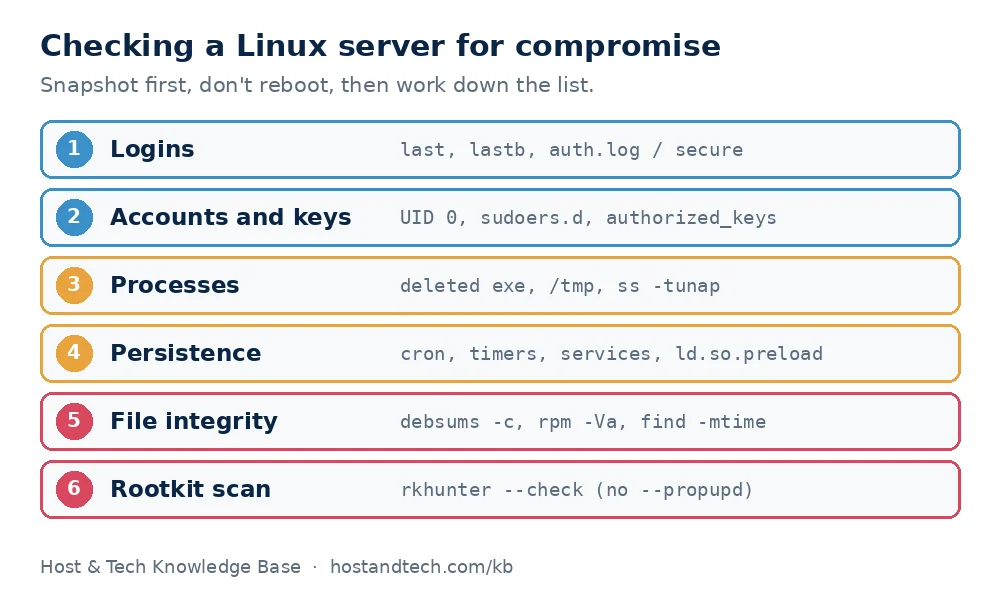
Step 1: Check who has logged in
last -aiF | head -30
lastb -ai | head -20
who
last shows successful logins with the source IP; lastb shows failed ones. You’re looking for logins from IPs or countries you don’t recognise, at times nobody was working, or for accounts that never log in normally. Then check how they got in. On Ubuntu and Debian:
grep "Accepted" /var/log/auth.log | tail -30On AlmaLinux and Rocky Linux, use /var/log/secure instead. Accepted password for root from an unknown IP means the root password is known to someone else. Accepted publickey from an unknown IP means a key you didn’t add is in an authorized_keys file (Step 2). A login history that’s empty or starts suspiciously recently, on a server that’s been up for months, can mean the logs were wiped, which points to a compromise on its own.
Step 2: Check accounts, sudo rights and SSH keys
awk -F: '$3 == 0 {print $1}' /etc/passwd
grep -vE 'nologin|false$' /etc/passwd
ls -la /etc/sudoers.d/
The first command should print only root. Any other account with user ID 0 is a second root account, and a classic backdoor. The second lists every account that can log in; compare it with the people who should have access. Then read every SSH key on the box:
find / -xdev -name authorized_keys -exec ls -l {} \; -exec cat {} \; 2>/dev/nullEach key ends with a comment, often user@hostname. A key you can’t match to a person, or one added to /root/.ssh/authorized_keys recently, is how attackers keep access after you change passwords.
Step 3: Check running processes and network connections
ps auxf --sort=-%cpu | head -20
ls -l /proc/*/exe 2>/dev/null | grep deleted
ss -tunap
In the process list, watch for programs running from /tmp, /var/tmp or /dev/shm, random-looking names, or something pretending to be a kernel thread (a name in square brackets) that has a parent process and a real path. Cryptocurrency miners are the most common find on hacked VPSs: one process, high CPU, an odd name.
The second command lists processes whose program file has been deleted from disk while still running. Legitimate software occasionally shows up there right after an update, but malware does it on purpose so there’s no file to find. Check the full command line of anything it lists with cat /proc/PID/cmdline | tr '\0' ' ', replacing PID.
In ss, look for outbound connections to unfamiliar IPs on ports such as 3333, 4444, 5555 or 6667 (mining pools and IRC-style command servers), and for anything listening on a port you didn’t open.
Step 4: Check how it would come back
Attackers almost always leave a way to restart their program after you kill it. Check cron for every user, the system cron folders, systemd timers and enabled services:
for u in $(cut -d: -f1 /etc/passwd); do crontab -l -u "$u" 2>/dev/null | sed "s/^/$u: /"; done
ls -la /etc/cron.d /etc/cron.hourly /etc/cron.daily /var/spool/cron* 2>/dev/null
systemctl list-timers --all --no-pager
systemctl list-unit-files --state=enabled --no-pager
A cron line that runs curl or wget piped into sh, anything running from /tmp, or a service with a generic name you didn’t install, are all red flags. Also check this file:
ls -l /etc/ld.so.preload; cat /etc/ld.so.preload 2>/dev/nullOn a normal server it doesn’t exist. If it does and lists a library you don’t recognise, every program on the system is loading that library, which is how user-space rootkits hide processes and files from ps and ls. Treat that as a confirmed compromise.
Step 5: Check system files against their packages
Package managers keep a checksum of every file they install, so you can find system binaries that were swapped. On Ubuntu and Debian:
sudo apt install debsums
sudo debsums -c
On AlmaLinux and Rocky Linux:
rpm -Va | grep '^..5' | grep -v ' c /'Both list files whose contents differ from the package. Changed config files are normal (the grep -v ' c /' hides them on RPM systems). A changed binary in /bin, /sbin, /usr/bin or /usr/sbin, such as ps, ls, ss or sshd, is not normal. Then look for files changed in the last week where they shouldn’t be, and for scripts dropped into web folders:
find /bin /sbin /usr/bin /usr/sbin /etc -xdev -type f -mtime -7 -ls
find /tmp /var/tmp /dev/shm -type f -ls
find /var/www /home/*/public_html -name "*.php" -mtime -3 -ls 2>/dev/null
A hacked website is the most common way in on shared and cPanel servers; for scanning web files there, see scanning for malware in cPanel.
Step 6: Run a rootkit scanner
rkhunter checks for known rootkits, hidden files and suspicious changes. Install it from the distribution repositories (on AlmaLinux and Rocky Linux it’s in EPEL), update its data files and run a check:
sudo apt install rkhunter
sudo rkhunter --update
sudo rkhunter --check --sk --rwo
--rwo prints only the warnings. Expect a few false positives on any server, such as scripts in place of binaries on some distributions; judge each warning against what you found in Steps 3 to 5.
Warning: don’t run rkhunter --propupd on a server you suspect. It records the current state of system files as the trusted baseline, so if they’ve already been replaced, you’d be teaching it that the hacked versions are fine. Run it only on a freshly installed, known-clean server.
A clean scan isn’t proof the server is safe: a rootkit with root access can hide from tools running on the same system. Count it as one more piece of evidence alongside the manual checks.
Common Issues & Troubleshooting
lastb: /var/log/btmp: No such file or directory
Cause: Failed-login logging isn’t set up, or the file was deleted.
Fix: Use the SSH log from Step 1 instead (grep "Failed password"). If the file was there before and has vanished, treat it as tampering.
debsums: command not found
Cause: It isn’t installed by default.
Fix: Install it with apt install debsums. If you suspect the package tools themselves, compare against a clean server running the same release.
rkhunter warns “The file properties have changed”
Cause: Usually a package update after the last baseline, but it’s also exactly what a replaced binary looks like.
Fix: Check that file with debsums or rpm -Vf /path/to/file. If the package check passes, it’s an update; if it fails, it’s a modified file.
I found a miner, killed it, and it came back
Cause: A cron job, systemd service or timer restarts it, or the attacker still has a way in.
Fix: Find the persistence from Step 4 and the entry point from Steps 1 and 2. Then read the next section, because cleaning in place is rarely enough.
If You Find Signs of a Compromise
If the attacker had root (a second UID 0 account, swapped binaries, ld.so.preload, a rootkit warning you can confirm), assume you can’t fully trust anything on that system. The safe recovery, and the one I recommend every time:
- Keep the snapshot for reference and to work out how they got in.
- Build a fresh server and restore your data (site files, databases, mail) from a backup taken before the compromise, checking web files for injected code. Don’t restore binaries or system config wholesale.
- Change every password and SSH key that was on the old server, including database passwords and API keys in config files.
- Close the way in: patch the software, remove password logins for SSH (setting up SSH keys), and add brute-force protection with Fail2Ban.
If only a website account was hit (a web shell in one site, no root-level signs), cleaning that site and updating its software can be enough. If the symptom was outgoing spam, finding the source of spam on a server covers tracing it. For a full hardening pass on the rebuilt server, work through how to secure your Linux server and the server security audit checklist. If your server is a Host & Tech VPS or dedicated server, open a ticket in our Help Centre with what you found before you rebuild.
Frequently Asked Questions
How can I tell if my Linux server has been hacked?
Check recent logins with last and the SSH log, look for unknown accounts and SSH keys, review running processes and network connections, check cron jobs and services, and compare system files with their packages using debsums or rpm -Va. High CPU from an unknown process is the most common first sign.
What is /etc/ld.so.preload and why does it matter?
It’s a file that makes every program load a listed library first. Normal servers don’t have one, so an unknown entry there usually means a rootkit is hiding processes and files from tools like ps and ls.
Can I trust rkhunter if it finds nothing?
Only partly. A rootkit with root access can hide from tools on the same system, so a clean scan is one piece of evidence. Combine it with the login, process and package checks, and never run rkhunter –propupd on a server you suspect.
Should I clean a hacked server or reinstall it?
If the attacker had root access, reinstall on a fresh server and restore only your data from a backup taken before the compromise. Cleaning in place risks leaving a backdoor you didn’t find.
What should I do first if I think my server is compromised?
Take a snapshot, don’t reboot, and block outbound traffic at your provider’s firewall if the server is sending spam or attacking others. Then work through the checks before changing anything.