
Overview
“413 Request Entity Too Large” in Plesk means the upload was bigger than nginx is allowed to accept, so it was refused before PHP or your application ever saw it. Fix it in two places for the domain: raise client_max_body_size under Apache & nginx Settings > Additional nginx directives, then raise upload_max_filesize and post_max_size in the domain’s PHP Settings. If the 413 page doesn’t say nginx, ModSecurity or a CDN is the one blocking it.
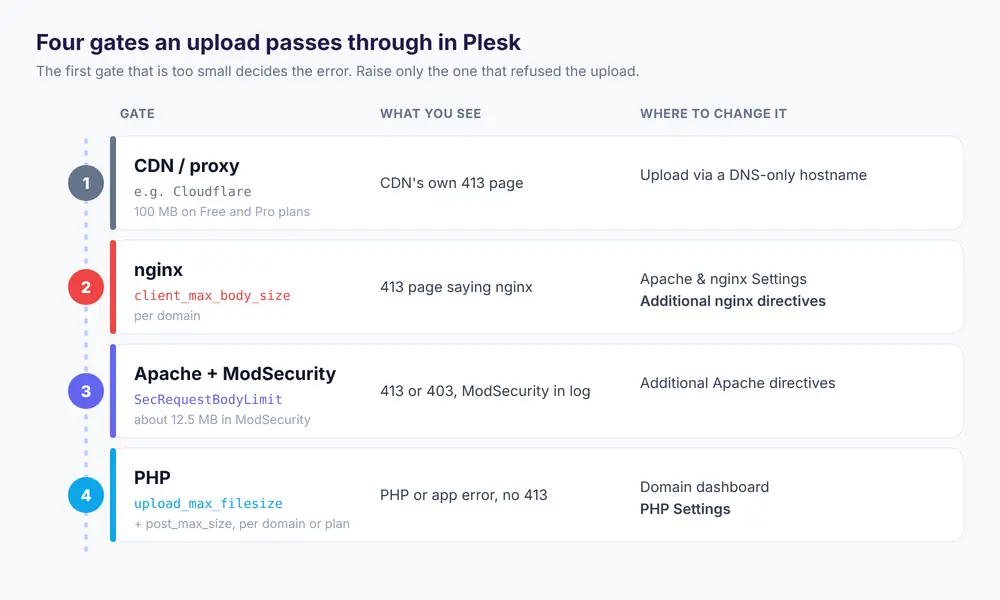
This guide is for Plesk Obsidian on Linux, on a VPS or dedicated server, where an upload of a large image, video, plugin, theme or database dump fails. Every request passes through up to four gates, each with its own size limit, and raising only one of them is why so many fixes “don’t work”. You’ll find which gate stopped the upload, raise it, and test the result with a real file instead of guessing.
Prerequisites
- Plesk administrator access, or a customer account with permission to change PHP and web server settings.
- SSH root access for the testing and log steps (optional but much faster).
- The size you need. Pick a value a little above your largest real upload, such as 256 MB for site backups. Setting everything to unlimited makes it easy for anyone to fill your disk.
Step 1: Find out which gate refused the upload
Look at the error page and the logs before changing anything.
| What you see | Who refused it | Fix |
|---|---|---|
413 page with nginx at the bottom |
nginx | Step 2 |
| 413 or 403 from Apache, or a ModSecurity entry in the log | Apache or ModSecurity | Step 4 |
| Your CDN’s branded 413 page | The CDN, before your server | Upload directly or raise the CDN limit |
| “The uploaded file exceeds the upload_max_filesize directive in php.ini” or a silent empty form | PHP | Step 3 |
Over SSH, the domain’s logs tell you directly. Replace example.com with your domain:
grep -i "too large body" /var/www/vhosts/system/example.com/logs/proxy_error_log | tail -5
grep -i "ModSecurity" /var/www/vhosts/system/example.com/logs/error_log | tail -5
A line containing client intended to send too large body: 104857600 bytes is nginx, and it tells you the exact size of the failed upload. These logs are also in Plesk under Websites & Domains > example.com > Logs.
Step 2: Raise the nginx limit for the domain
- Go to Websites & Domains and open the domain.
- Click Apache & nginx Settings (on the Hosting & DNS tab in recent Plesk versions).
- Scroll to Additional nginx directives and add the line below.
- Click OK. Plesk tests the configuration and reloads nginx.
client_max_body_size 256m;If Plesk refuses with "client_max_body_size" directive is duplicate, the value is already being written for this domain from another setting. See the troubleshooting section below.
To confirm what nginx is really using after the change:
nginx -T 2>/dev/null | grep -n client_max_body_sizeStep 3: Raise the PHP limits
nginx now lets the upload through, but PHP has its own ceiling. Open the domain’s PHP Settings (in recent Plesk versions it’s on the domain’s Dashboard or Dev Tools tab, or click the PHP version shown for the domain) and set:
| Setting | Example value | Why |
|---|---|---|
upload_max_filesize |
256M | Largest single file |
post_max_size |
264M | Whole request, so slightly larger than the file |
memory_limit |
256M | Enough to process what was uploaded |
max_execution_time |
300 | Time for the script to handle the file |
max_input_time |
300 | Time allowed to receive the upload on slow connections |
Pick Custom for any value not in the drop-down, then click OK. If the domain’s PHP handler runs under a service plan with locked settings, change the plan instead (Service Plans > plan > PHP Settings) so the change isn’t reverted on the next sync. For more on handlers and versions, see managing PHP versions in Plesk.
To check the values PHP actually loaded, create a temporary file in the site’s document root:
<?php phpinfo();Save it as info-7f3k.php, open it in a browser and search for upload_max_filesize and post_max_size. Delete it straight afterwards; it shows a lot about your server.
Step 4: Apache and ModSecurity (only if they blocked it)
Apache 2.4.53 and later already allow request bodies up to 1 GB by default, so Apache itself is rarely the limit unless someone set LimitRequestBody lower. ModSecurity is the usual suspect. Its default request body limit is about 12.5 MB, and when it blocks you’ll see a log line mentioning Request body (Content-Length) is larger than the configured limit.
Raise it for one domain under Apache & nginx Settings > Additional Apache directives, in both the HTTP and HTTPS boxes:
<IfModule mod_security2.c>
    SecRequestBodyLimit 268435456
</IfModule>
LimitRequestBody 268435456
268435456 bytes is 256 MB. Don’t switch ModSecurity off for the whole site to get one upload through; you lose its protection for every other request.
Step 5: Test with a real file
Rather than clicking upload and waiting, send a test request of a known size from the server or your own computer:
fallocate -l 200M /tmp/upload-test.bin
curl -s -o /dev/null -w '%{http_code}' -F "file=@/tmp/upload-test.bin" https://example.com/ ; echo
rm /tmp/upload-test.bin
A 413 means a gate is still too small. Any other code, including 200, 403 or 405, means the body got through nginx; your application simply didn’t expect a file at that URL. Finish with a real upload in your application.
Troubleshooting
Invalid nginx configuration: “client_max_body_size” directive is duplicate
Plesk already writes a client_max_body_size line for this domain, so adding a second one in the same block fails the config test. Find where it comes from:
grep -rn client_max_body_size /var/www/vhosts/system/example.com/conf/ /etc/nginx/conf.d/ /etc/nginx/plesk.conf.d/ 2>/dev/nullIf the existing value comes from a field on the Apache & nginx Settings page, change it there instead of adding a directive. If it’s in a custom file under /etc/nginx/conf.d/ from an earlier fix, edit that file, then run nginx -t and systemctl reload nginx.
The change saved but uploads still fail with 413
Check the page footer again: if it’s not nginx any more, a different gate is now the smallest. Also make sure you edited the right site. Subdomains and aliases served as separate domains in Plesk have their own settings. If the site sits behind Cloudflare, uploads larger than 100 MB are refused on the Free and Pro plans no matter what your server allows; upload through a DNS-only (grey cloud) hostname or the server’s IP instead.
WordPress: The uploaded file exceeds the upload_max_filesize directive in php.ini
nginx is fine; PHP is the limit. Repeat Step 3 and confirm with phpinfo(). On a WordPress multisite, also raise Max upload file size under Network Admin > Settings, which WordPress enforces on its own.
504 Gateway Timeout or the upload stops partway through
The size limit is fine, but the upload takes longer than a timeout. Raise max_input_time and max_execution_time in PHP, and for very large or slow uploads add client_body_timeout 300s; next to client_max_body_size in the nginx directives. If nginx itself won’t restart after an edit, follow fixing nginx failed to start in Plesk.
Running Plesk yourself on a Host & Tech VPS gives you root access for every step here. If you’re setting up a new site, creating a website in Plesk covers the rest of the hosting settings, and on cPanel servers the same PHP limits live in WHM’s PHP configuration.
Frequently Asked Questions
What causes 413 Request Entity Too Large in Plesk?
The request body is larger than nginx’s client_max_body_size for that domain, so nginx refuses it before Apache or PHP sees it. Less often, ModSecurity, Apache’s LimitRequestBody or a CDN such as Cloudflare is the limit instead.
Where do I change client_max_body_size in Plesk?
Open the domain in Websites & Domains, go to Apache & nginx Settings and add client_max_body_size 256m; to Additional nginx directives. Plesk tests and reloads nginx when you click OK.
Do I need to change PHP settings as well?
Yes. Once nginx accepts the upload, PHP’s upload_max_filesize and post_max_size must also be large enough, or the upload fails with a PHP error instead of a 413. Set post_max_size slightly larger than upload_max_filesize.
Why do I still get 413 after changing the settings?
Another gate is now the smallest: check whether the error page still says nginx, look for ModSecurity entries in the domain’s error log, and remember Cloudflare’s Free and Pro plans cap uploads at 100 MB regardless of your server.
Is it safe to set the upload limit to unlimited?
It is not recommended. An unlimited body size lets anyone send huge requests that tie up the server or fill the disk. Set a limit a little above your largest real upload.