
Overview
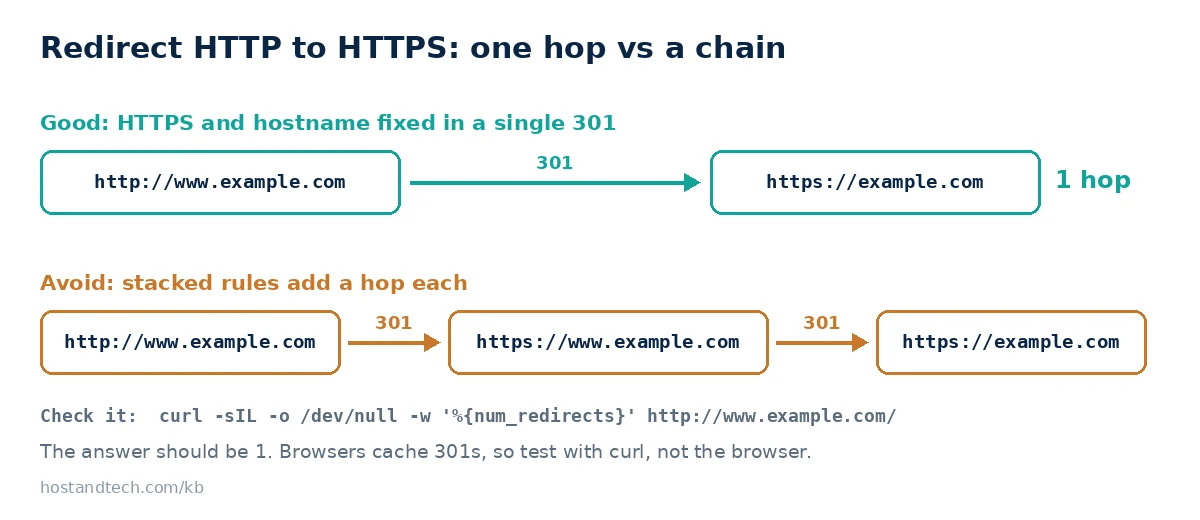
To redirect HTTP to HTTPS, turn on Force HTTPS Redirect in cPanel’s Domains page, or tick Permanent SEO-safe 301 redirect from HTTP to HTTPS in Plesk’s hosting settings. If you need more control, add a three-line rewrite rule to .htaccess, a return 301 server block in Nginx, or a URL Rewrite rule in IIS. Whichever you pick, use one method only and make it a single 301 that also settles www versus non-www.
This guide is for anyone who has an SSL certificate installed and still sees http:// versions of their pages load, in browsers or in Google Search Console. You’ll finish with every HTTP address sending a permanent redirect straight to the right HTTPS address, a test that proves it, and fixes for the redirect loops people run into.
Prerequisites
- A valid SSL certificate that covers every name you redirect to, including
www. Loadhttps://yourdomainandhttps://www.yourdomainfirst; both should show a padlock. If one shows ERR_SSL_PROTOCOL_ERROR instead, fix that first. If not, fix that before redirecting (see what an SSL certificate is and how you get one). - Access to cPanel, Plesk, or SSH on your VPS.
- A decision on your main hostname:
example.comorwww.example.com. Either is fine; mixing them is not. - For WordPress sites, the site address already set to
https://in Settings > General (see fixing mixed content after switching to HTTPS).
Step-by-Step: Redirect HTTP to HTTPS
Step 1: Pick one method and remove the others
On most sites I’m asked to fix, there are already two or three HTTPS redirects: the cPanel toggle, a rule in .htaccess and a WordPress plugin, each adding its own hop or fighting the others into a loop. Choose one of the steps below that matches your setup, and remove any older HTTPS redirect you find elsewhere.
| Your setup | Best method |
|---|---|
| cPanel, simple site | Step 2: Force HTTPS Redirect toggle |
| cPanel, need www and HTTPS in one hop | Step 3: .htaccess rule |
| Plesk (Linux or Windows) | Step 4: Plesk hosting setting |
| VPS with Nginx | Step 5: Nginx server block |
| Windows / IIS without Plesk | Step 6: web.config rule |
Step 2: cPanel: turn on Force HTTPS Redirect
- Log in to cPanel and open Domains (in the Domains section).
- Find your domain and switch Force HTTPS Redirect to On.
- Repeat for any addon domains that should also redirect.
If the switch is greyed out, cPanel doesn’t see a valid certificate for that domain yet. Open SSL/TLS Status, click Run AutoSSL, wait for it to finish, and try again. The toggle only handles HTTP to HTTPS; it doesn’t change www to non-www, so a visitor on http://www.example.com may still take two hops. If that matters to you, use Step 3 instead.
Step 3: .htaccess: redirect HTTP to HTTPS on Apache and LiteSpeed
Open public_html/.htaccess in cPanel File Manager (turn on Show Hidden Files in Settings). Add this at the very top of the file:
RewriteEngine On
RewriteCond %{REQUEST_URI} !^/\.well-known/
RewriteCond %{HTTPS} off
RewriteRule ^ https://%{HTTP_HOST}%{REQUEST_URI} [L,R=301]
The .well-known line keeps certificate validation requests on plain HTTP. Let’s Encrypt follows redirects, but not every validation method does, and excluding the folder costs nothing.
To force HTTPS and your main hostname in a single hop, use one of these instead. For https://example.com (no www):
RewriteEngine On
RewriteCond %{REQUEST_URI} !^/\.well-known/
RewriteCond %{HTTPS} off [OR]
RewriteCond %{HTTP_HOST} ^www\. [NC]
RewriteCond %{HTTP_HOST} ^(?:www\.)?(.+)$ [NC]
RewriteRule ^ https://%1%{REQUEST_URI} [L,R=301]
For https://www.example.com:
RewriteEngine On
RewriteCond %{REQUEST_URI} !^/\.well-known/
RewriteCond %{HTTPS} off [OR]
RewriteCond %{HTTP_HOST} !^www\. [NC]
RewriteCond %{HTTP_HOST} ^(?:www\.)?(.+)$ [NC]
RewriteRule ^ https://www.%1%{REQUEST_URI} [L,R=301]
Note: on WordPress, put these lines above the # BEGIN WordPress block. WordPress rewrites everything between its markers whenever permalinks are saved, and rules placed after its catch-all never run.
Step 4: Plesk: enable the SEO-safe 301 redirect
- Go to Websites & Domains > your domain > Hosting & DNS > Hosting.
- Under Security, choose your certificate and tick Permanent SEO-safe 301 redirect from HTTP to HTTPS.
- Set Preferred domain to either the www or non-www form, so Plesk also redirects the other one.
- Click OK or Save.
On Plesk for Windows this redirect is a URL Rewrite rule that your site’s web.config can cancel. If it doesn’t work, look for a <clear /> line inside <rewrite><rules> in httpdocs/web.config and remove it.
Step 5: Nginx: add a port 80 server block
On a VPS running Nginx, give port 80 its own server block that does nothing but redirect. Use your main hostname in the target:
server {
    listen 80;
    listen [::]:80;
    server_name example.com www.example.com;

    location /.well-known/acme-challenge/ {
        root /var/www/example.com;
    }

    location / {
        return 301 https://example.com$request_uri;
    }
}
If your main hostname is example.com, add a separate HTTPS server block for www.example.com with the same certificate that returns 301 https://example.com$request_uri. Then test and reload:
sudo nginx -t && sudo systemctl reload nginxIf you used Certbot’s --nginx plugin, it may already have added a redirect for you. Check for an existing return 301 before adding another.
Step 6: IIS: add a URL Rewrite rule to web.config
On Windows Server with IIS and the URL Rewrite module installed, add this rule inside <system.webServer><rewrite><rules> in the site’s web.config:
<rule name="Redirect to HTTPS" stopProcessing="true">
  <match url="(.*)" />
  <conditions>
    <add input="{HTTPS}" pattern="^OFF$" />
  </conditions>
  <action type="Redirect" url="https://{HTTP_HOST}/{R:1}" redirectType="Permanent" />
</rule>
The site also needs an HTTPS binding with a certificate; configuring an SSL certificate in IIS walks through that. On Plesk for Windows, web.config redirects and URL Rewrite in Plesk has more rule examples.
Step 7: Test the redirect
Use curl rather than a browser, because browsers cache 301 redirects and will happily show you yesterday’s behaviour:
curl -sI http://example.com/some-page/ | grep -iE '^(HTTP|location)'You should see:
HTTP/1.1 301 Moved Permanently
Location: https://example.com/some-page/
Then count the hops from the worst-case address (HTTP plus the hostname you don’t use):
curl -sIL -o /dev/null -w '%{num_redirects} hop(s) to %{url_effective}\n' http://www.example.com/The answer should be 1 hop(s) to https://example.com/. Two hops still work, but every extra redirect adds a round trip on slow mobile connections.
Step 8 (optional): Add HSTS once everything works
HSTS tells browsers to go straight to HTTPS without asking over HTTP first. Start with a short lifetime, and raise it after a week with no problems. In .htaccess:
Header always set Strict-Transport-Security "max-age=300"Warning: once a browser has seen a long HSTS lifetime, you can’t go back to HTTP for that domain until it expires. Don’t add includeSubDomains or preload until every subdomain, including mail and staging hosts, has a working certificate.
Common Issues & Troubleshooting
ERR_TOO_MANY_REDIRECTS
Cause: two redirects are fighting (for example a www rule in .htaccess and the opposite Preferred domain in Plesk), or a CDN or proxy talks to your server over HTTP, so the server keeps seeing HTTPS off and redirecting again. The classic case is a CDN set to a “flexible” SSL mode.
Fix: remove every redirect except the one you chose in Step 1. If a CDN sits in front, set it to connect to your server over HTTPS with full certificate checking, so the server sees HTTPS requests. Then clear the browser cache or test with curl.
The redirect does nothing
Cause: the rule is in the wrong .htaccess (an addon domain has its own document root), .htaccess is ignored because the server runs Nginx only, or on your own Apache server AllowOverride is set to None.
Fix: check the domain’s document root in cPanel’s Domains page and edit the .htaccess in that folder. On a VPS, use the server config (Step 5) or set AllowOverride All for the site’s directory.
AutoSSL or Let’s Encrypt renewal fails after adding the redirect
Cause: the validation request for /.well-known/ is being redirected somewhere it can’t be answered, often to a different hostname.
Fix: keep the .well-known exclusion from Step 3 (or the Nginx location in Step 5), then rerun AutoSSL. The SSL renewal troubleshooting guide covers the other causes.
Search Console still shows http:// pages
Cause: Google recrawls old URLs gradually, and internal links, the sitemap or canonical tags still use http://.
Fix: update internal links and the site URL setting to https://, make sure the sitemap lists HTTPS addresses only, and give it a few weeks. A clean 301 passes the old URL’s ranking to the new one.
Hosting that handles certificates for you saves most of this work: Host & Tech cPanel hosting issues free AutoSSL certificates for every domain on the account, so the Force HTTPS switch is available as soon as the domain points at us.
Frequently Asked Questions
Should I use a 301 or 302 redirect for HTTPS?
Use a 301 (permanent) redirect. It tells search engines the HTTPS address has replaced the HTTP one, so rankings move across. A 302 is only for temporary moves and is useful while testing, because browsers don’t cache it as hard.
Does redirecting HTTP to HTTPS hurt SEO?
No. A single 301 to the HTTPS version is what Google expects, and HTTPS is a small ranking signal in its own right. What hurts is redirect chains, loops, and internal links or sitemaps that still point at http:// addresses.
Why is the Force HTTPS Redirect switch greyed out in cPanel?
cPanel only enables it when the domain has a valid certificate. Open SSL/TLS Status, click Run AutoSSL and wait for it to finish. If AutoSSL fails, the domain usually doesn’t point at the server yet or a DNS record is wrong.
Do I need a plugin to force HTTPS in WordPress?
No. Set both addresses in Settings > General to https://, then use the cPanel switch or the .htaccess rule. Plugins that force HTTPS add a PHP-level redirect on top of the server one, which is slower and is a common source of redirect loops.
Do I still need a redirect if I use HSTS?
Yes. HSTS only works after a browser has visited the site over HTTPS at least once, and search engines and first-time visitors still arrive on http:// links. The 301 handles them; HSTS then speeds up repeat visits.