
Overview
To check hard drive health on a Linux dedicated server, install smartmontools and run smartctl -a on each disk. Ignore the overall “PASSED” line and read the handful of numbers that actually predict failure: reallocated, pending and uncorrectable sectors on SATA and SAS drives, and media errors, available spare and percentage used on NVMe drives. Then turn on smartd so the server emails you before a disk dies, not after.
This guide is for anyone running their own dedicated server or bare-metal box with root access. It covers finding every disk (including ones hidden behind a RAID controller), reading the output without guessing, running self-tests, checking software RAID, and what to send your host when a disk needs replacing. Most “my server is suddenly slow” and “MySQL crashed” tickets we see on older hardware trace back to a disk that had been warning for weeks.
Prerequisites
- Root SSH access to the server.
- A recent backup, or a plan to take one first. Never stress-test a disk you suspect is failing before its data is safe.
- About 10 minutes, plus the length of a long self-test if you run one (one to several hours, depending on disk size).
Step 1: Install smartmontools
On AlmaLinux, Rocky Linux or CloudLinux:
dnf install -y smartmontoolsOn Ubuntu or Debian:
apt update && apt install -y smartmontoolsStep 2: List every disk
lsblk -d -o NAME,SIZE,ROTA,TYPE,MODEL,SERIAL
smartctl --scan
ROTA is 1 for spinning disks and 0 for SSDs and NVMe. smartctl --scan also shows the device type it will use, which matters if the server has a hardware RAID card. If you see a single large disk with a model like PERC, MR9361 or LOGICAL VOLUME, that’s a RAID controller hiding the real drives; skip to Step 6.
Step 3: Read SATA and SAS drive health
smartctl -a /dev/sdaThe output is long. Look at three parts.
The overall verdict. SMART overall-health self-assessment test result: PASSED only means no attribute has crossed the manufacturer’s failure threshold. Drives routinely pass this line while they’re already losing data, so don’t stop here.
The attribute table. Read the RAW_VALUE column on the right, not VALUE or WORST. These are the attributes that matter:
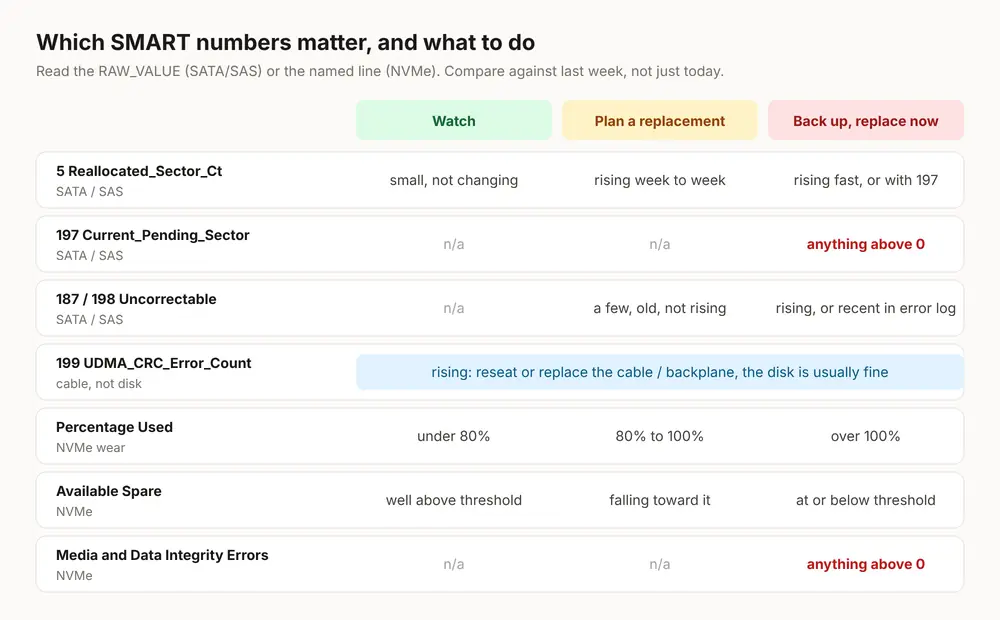
| ID | Attribute | What a non-zero raw value means |
|---|---|---|
| 5 | Reallocated_Sector_Ct | Sectors already replaced with spares. A small stable number is survivable; a rising one isn’t. |
| 187 | Reported_Uncorrect | Reads the drive could not correct. Data was lost or retried from RAID. |
| 197 | Current_Pending_Sector | Sectors waiting to be reallocated because they can’t be read. The most urgent number here. |
| 198 | Offline_Uncorrectable | Bad sectors found during an offline scan. |
| 199 | UDMA_CRC_Error_Count | Errors on the cable or backplane, not the disk surface. Usually fixed by reseating or replacing the cable. |
| 194 | Temperature_Celsius | Sustained readings above about 55 °C shorten disk life. Check fans and airflow. |
| 9 | Power_On_Hours | Age. Not a fault, but 40,000+ hours on a spinning disk means you should plan a refresh. |
Attribute names vary slightly between manufacturers, and some SSDs use their own IDs for wear. If a value looks odd, compare it against the same model’s other disk in the server.
The error log. smartctl -l error /dev/sda shows the last few errors the drive recorded. Recent entries with UNC (uncorrectable) mean the drive is failing to read data now.
Step 4: Read NVMe drive health
smartctl -a /dev/nvme0NVMe drives don’t use the attribute table. Look at these lines in the SMART/Health Information section instead:
Critical Warning: should be0x00. Anything else means the drive itself is flagging a problem (spare space low, read-only mode, temperature).Available SpareversusAvailable Spare Threshold: when spare drops to the threshold, replace the drive.Percentage Used: estimated wear against the drive’s rated life. 100% doesn’t mean instant failure, but past 80% you should plan a replacement.Media and Data Integrity Errors: should be0. Any non-zero value is a real problem.Error Information Log Entries: often non-zero and harmless, because some kernels log routine unsupported commands here. Don’t panic over this one alone.
Step 5: Run a self-test
A short test takes about two minutes and checks the electronics and a sample of the surface. A long test reads every sector and is the real check.
smartctl -t short /dev/sda
# wait for the time smartctl prints, then:
smartctl -l selftest /dev/sda
For a full surface scan, use -t long. It runs inside the drive, so the server stays online, but expect slower disk performance until it finishes. A result of Completed: read failure with an LBA_of_first_error means the drive has unreadable sectors and should be replaced. Recent smartctl versions can also run self-tests on NVMe drives that support them, using the same commands with /dev/nvme0.
Step 6: Check software and hardware RAID
Linux software RAID (mdadm):
cat /proc/mdstat
mdadm --detail /dev/md0
In /proc/mdstat, [UU] means both mirrors are up, and [U_] means one member has dropped out. mdadm --detail shows which device is faulty or removed. A degraded array still works, but you no longer have a copy, so treat it as urgent.
Hardware RAID controllers hide the physical disks, so smartctl /dev/sda shows the virtual volume or nothing useful. Ask smartctl to talk through the controller instead, counting disks from 0:
# Broadcom / LSI MegaRAID and Dell PERC
smartctl -a -d megaraid,0 /dev/sda
smartctl -a -d megaraid,1 /dev/sda

# HPE Smart Array
smartctl -a -d cciss,0 /dev/sda
Also check the kernel log, which often shows trouble before SMART does:
dmesg -T | grep -iE "i/o error|medium error|ata[0-9]+.*(error|failed)|nvme.*(timeout|reset)"Step 7: Get warned automatically with smartd
Checking by hand once is good; being emailed the day a disk starts failing is better. Edit /etc/smartd.conf (on Debian and Ubuntu it’s the same path), comment out any existing DEVICESCAN line and add:
DEVICESCAN -a -o on -S on -n standby,q -s (S/../.././02|L/../../6/03) -W 4,45,55 -m you@yourdomain.comThat monitors every disk, runs a short self-test every night at 02:00 and a long one every Saturday at 03:00, warns on temperature changes of 4 °C or readings over 45 °C (critical at 55 °C), and emails the address you set. Then start the service:
# AlmaLinux, Rocky, CloudLinux
systemctl enable --now smartd

# Ubuntu and Debian (the unit is called smartmontools)
systemctl enable --now smartmontools
The server needs a working local mail command to send these alerts. To prove it works, temporarily add -M test to the end of the line, restart the service and check you received the test email, then remove it. Pair this with the CPU, RAM and network checks in monitoring dedicated server performance.
What to do when a disk is failing
- Back up first. Copy databases and site files off the server before anything else. Don’t run
fsck, a long self-test or a RAID rebuild on a failing disk until the data is safe; each of those puts heavy load on it. - Get the serial number of the failing drive so the data centre replaces the right one:
smartctl -i /dev/sdb | grep -i serial. - Remove it from the array if it’s in software RAID and still listed as active:
mdadm /dev/md0 --fail /dev/sdb1 --remove /dev/sdb1(repeat for each partition on that disk). - Open a ticket with your host with the serial, the
smartctl -aoutput and a time window for the swap. - Rebuild and verify. After the new disk is in, copy the partition table and add it back to the array, then watch
cat /proc/mdstatuntil the rebuild finishes.
Warning: double-check the device name in step 3. Failing the wrong disk on a two-disk mirror takes the server down.
Troubleshooting
Smartctl open device: /dev/sda failed: DELL or MegaRaid controller, please try adding ‘-d megaraid,N’
The disk sits behind a hardware RAID controller. Use -d megaraid,0, -d megaraid,1 and so on, as in Step 6. If none respond, the controller vendor’s own tool (storcli or perccli) is the fallback.
SMART support is: Unavailable – device lacks SMART capability
You’re usually looking at a virtual disk: a VPS, a RAID volume or a USB bridge. On a VPS there’s nothing to check from inside, because the physical disks belong to the host. Ask your provider instead.
SMART overall-health PASSED but the server is slow and logging I/O errors
Trust the errors, not the summary line. Look at attributes 5, 187, 197 and 198 and the error log. High pending sectors cause long read retries that make the whole server feel frozen, and MySQL tables on those sectors can corrupt; see repairing crashed MySQL tables once the disk is replaced.
UDMA_CRC_Error_Count keeps rising on a healthy-looking disk
That’s the cable, backplane or port, not the disk. On a rented server, mention the attribute in your ticket so the technician reseats or swaps the cable instead of the drive.
Our dedicated servers come with IPMI access and free NAS backup space, so you can take a safe copy before a disk swap. If you’d rather not watch disks yourself, managed vs unmanaged dedicated servers explains what we monitor for you.
Frequently Asked Questions
How do I check hard drive health in Linux?
Install smartmontools and run smartctl -a /dev/sda for SATA or SAS disks, or smartctl -a /dev/nvme0 for NVMe. Read the raw values of reallocated, pending and uncorrectable sectors, or the media errors and available spare lines on NVMe, rather than relying on the PASSED summary.
Can a drive pass SMART and still be failing?
Yes. The overall PASSED result only means no attribute has crossed the manufacturer threshold. Drives often pass while pending and uncorrectable sector counts climb, so always read the individual attributes.
Which SMART attribute is most important?
Current_Pending_Sector (197) and Reported_Uncorrect (187) are the most urgent, because they mean the drive already cannot read some data. A rising Reallocated_Sector_Ct (5) is the next warning sign.
Can I check disk health on a VPS?
Usually not. A VPS sees virtual disks, so smartctl reports that SMART is unavailable. The physical drives belong to the host, which monitors them for you.
How long does a SMART long test take?
It depends on size and type: a few minutes on a small SSD, and several hours on a large spinning disk. smartctl prints an estimate when you start it, and the server stays online while it runs.