
Overview
Dedicated server rescue mode boots your server from a small Linux system loaded over the network instead of from its own disks. From there you can check the file systems, mount your real installation, chroot into it and fix whatever stopped it booting: a bad /etc/fstab line, a broken kernel update, a full disk, a lost root password or a firewall rule that locked you out. Then you switch the boot back to the disk and reboot.
This guide is for owners of unmanaged Linux dedicated servers (Ubuntu, Debian, AlmaLinux, Rocky) who can’t reach the server over SSH any more. It works the same with single disks, software RAID and LVM. Most fixes take 15 to 30 minutes once you’re in. The step people forget is the last one, switching the boot device back, which is why so many servers “keep booting into rescue”.
Prerequisites
- Access to your provider’s client area or the server’s IPMI / KVM console, where rescue mode (often called netboot or rescue boot) is switched on.
- An SSH client. Rescue systems give you a temporary root password, usually by email or on screen.
- Your disk layout if you know it (single disk, RAID 1, LVM). If you don’t, Step 2 shows how to find it.
- A recent backup. Rescue work is usually safe, but a file system repair can delete damaged files.
Step-by-Step: Fix a Server From Rescue Mode
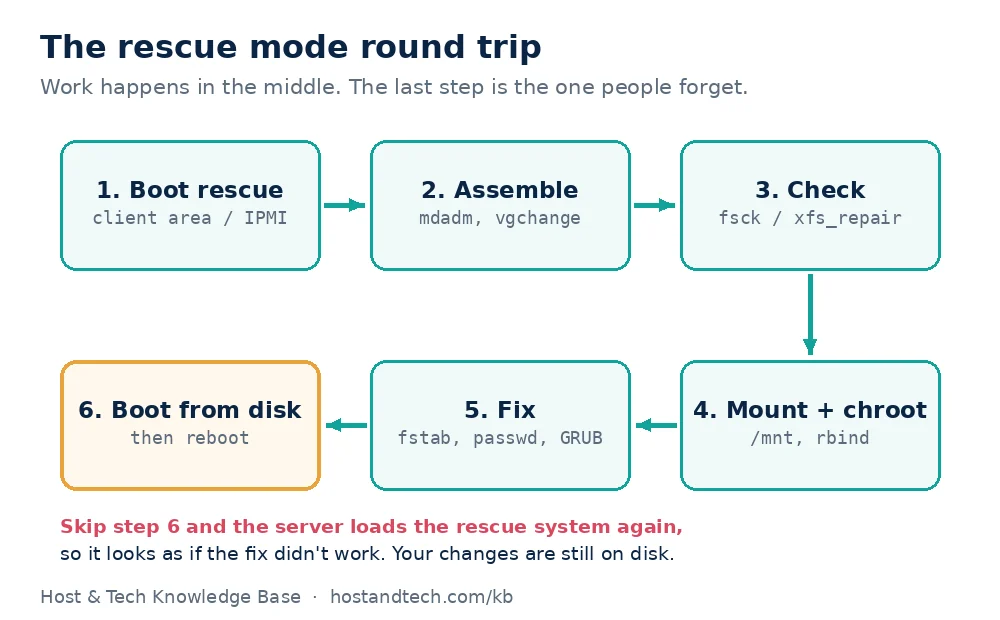
Step 1: Boot into rescue mode
In the client area or IPMI, set the boot mode to rescue and restart the server. When it comes up, log in as root with the temporary password. SSH will probably warn that the host key has changed, because the rescue system has its own key. That’s expected here and only here: clear the old entry and connect again.
ssh-keygen -R 203.0.113.10
ssh root@203.0.113.10
If you have IPMI, open the console as well. Watching the normal boot fail on screen often tells you the cause before you touch anything: a kernel panic, an fstab mount timing out, or the boot dropping into emergency mode.
Step 2: Find your disks, RAID arrays and volumes
The rescue system doesn’t mount anything for you. List what it can see:
lsblk -f
cat /proc/mdstat
Partitions with type linux_raid_member belong to a software RAID array. Assemble it, then activate LVM if any partition shows LVM2_member:
mdadm --assemble --scan
cat /proc/mdstat
vgchange -ay
lsblk -f
Now lsblk -f shows the arrays (/dev/md2 and so on) and logical volumes (/dev/mapper/vg-root) with their file systems. The root file system is usually the largest ext4 or XFS device. If /proc/mdstat shows [U_] instead of [UU], a RAID disk has dropped out; read how to check hard drive health on a dedicated server before you go further.
Step 3: Check the file system before mounting
If the boot stopped with file system errors, repair them now, while nothing is mounted:
fsck -f /dev/md2For XFS, use xfs_repair /dev/md2 instead. If it refuses because of a dirty log, mount and unmount the file system once to replay the log, then run it again.
Warning: never run fsck or xfs_repair on a mounted file system, and leave out the -L option of xfs_repair unless you accept losing the latest changes. If the disk itself is failing, copy your data off first.
Step 4: Mount the system and chroot into it
Mount the root file system, then /boot and /boot/efi if they’re separate partitions (check /mnt/etc/fstab after the first mount). Then bind the virtual file systems and switch into your installation:
mount /dev/md2 /mnt
mount /dev/md1 /mnt/boot
for d in dev proc sys run; do mount --rbind /$d /mnt/$d; done
chroot /mnt /bin/bash
From now on, commands act on your real server: passwd changes your real root password, apt or dnf work on your real packages. Run cat /etc/os-release to confirm you’re in the right place.
Step 5: Fix the cause
Pick the fix that matches what you saw on the console or in the logs. To read the log of the failed boot, try journalctl --list-boots and then journalctl -b -1 -p err (this only works if the journal is kept on disk).
Lost root password. Set a new one:
passwd rootOn AlmaLinux and Rocky with SELinux enforcing, also run touch /.autorelabel. Otherwise the new password file has the wrong SELinux label and logins still fail. The relabel makes the next boot take a few minutes longer.
Bad /etc/fstab entry. A disk that was removed or renamed makes the boot wait and then drop into emergency mode. Compare the UUIDs in fstab with the real ones:
blkid
nano /etc/fstab
Fix the UUID, or comment the line out with #. For backup or data disks that the server can live without, add nofail to the options so a missing disk never blocks the boot again.
Disk full. A full root file system can stop services from starting and breaks logins. Find what grew:
df -h /
du -xh --max-depth=1 /var | sort -h | tail -n 10
The usual culprits are logs in /var/log, old backups and the package cache. Delete what you can identify, not what you can’t.
Locked out by the firewall or SSH config. Turn the firewall off for the next boot and check the SSH settings:
systemctl disable firewalld
sed -i 's/^ENABLED=yes/ENABLED=no/' /etc/ufw/ufw.conf
sshd -t
Use the line that matches your firewall (firewalld on AlmaLinux and Rocky, UFW on Ubuntu). sshd -t prints nothing when the SSH configuration is valid; an error names the bad line. Inside the chroot, systemctl enable and disable work, while start and restart don’t, so don’t worry about the “Running in chroot” message.
Broken kernel or bootloader. After a failed update, rebuild the initramfs and the GRUB configuration. On Ubuntu and Debian:
update-initramfs -u -k all
grub-install /dev/sda
grub-install /dev/sdb
update-grub
Run grub-install on every disk in the RAID 1 array, so the server can still boot if the first disk dies. On AlmaLinux and Rocky:
dracut -f --regenerate-all
grub2-mkconfig -o /boot/grub2/grub.cfg
On UEFI servers, mount the EFI partition at /boot/efi before running these.
Step 6: Leave the chroot and boot from disk
exit
umount -R /mnt
Now go back to the client area or IPMI and set the boot device back to the hard disk. Only then reboot. If you reboot first, the server loads the rescue system again and it looks as if your fix didn’t work.
Verify the Server Is Healthy
Once SSH answers, check that the boot was clean and the services you need are running:
uptime
systemctl --failed
journalctl -b -p err --no-pager | tail -n 20
cat /proc/mdstat
If you disabled the firewall in Step 5, fix its rules and turn it back on now, while you’re still connected. Configuring UFW on Ubuntu covers the safe order (allow SSH first, then enable). Then go through the Linux server hardening steps if the lockout came from a change you made in a hurry.
Common Issues & Troubleshooting
mount: unknown filesystem type ‘linux_raid_member’
Cause: You tried to mount a single RAID member partition instead of the array.
Fix: Run mdadm --assemble --scan and mount the /dev/mdX device it creates.
mount: unknown filesystem type ‘LVM2_member’
Cause: The partition holds LVM volumes, which aren’t active yet.
Fix: Run vgchange -ay, then mount the logical volume from /dev/mapper/ shown by lsblk.
WARNING: REMOTE HOST IDENTIFICATION HAS CHANGED!
Cause: The rescue system and your installed system have different SSH host keys. You’ll see this on the way into rescue mode and again on the way out.
Fix: Run ssh-keygen -R with the server’s IP each time. If you see this warning when you haven’t switched modes, stop and find out why.
grub-install: error: cannot find EFI directory.
Cause: The server boots with UEFI and the EFI system partition isn’t mounted inside the chroot.
Fix: Leave the chroot, mount the small FAT32 partition from lsblk -f at /mnt/boot/efi, go back in with chroot and run the command again.
The server boots into rescue mode again after the fix
Cause: The boot device is still set to rescue or network boot.
Fix: Change it back to the hard disk in the client area or IPMI and reboot. Your changes are still on disk.
If you’d rather not handle boot failures yourself, compare managed and unmanaged dedicated servers, or look at our dedicated server plans. Watching disk space and RAID status as described in monitoring dedicated server performance prevents a fair share of these emergencies.
Frequently Asked Questions
What is rescue mode on a dedicated server?
Rescue mode boots the server from a temporary Linux system loaded over the network instead of its own disks. Your data stays untouched, and you can mount the disks to repair files, reset passwords or copy data off.
Will rescue mode delete my data?
No. Booting into rescue mode doesn’t change your disks. Data is only at risk from what you run there, such as a file system repair on a damaged disk, so take a backup first if you can.
How do I reset a lost root password on a dedicated server?
Boot into rescue mode, mount the root file system, chroot into it and run passwd root. On AlmaLinux or Rocky with SELinux, also create the file /.autorelabel before rebooting from disk.
Why does my server keep booting into rescue mode?
The boot device is still set to rescue or network boot in the client area or IPMI. Switch it back to the hard disk and reboot; the fixes you made are already saved on disk.
Can I copy my files off a server that won’t boot?
Yes. From rescue mode, mount the file system read-only and copy the data out with rsync or scp to another server. Do this before any file system repair if the disk is failing.