
Overview
“Access to the path is denied” in Plesk for Windows means the website’s application pool user isn’t allowed to write to the file or folder your code is trying to change. By default, Plesk gives that user read access only. The fix is to grant write (Modify) permission to the site’s application pool group, IWPG_login, on the folders the application writes to, either in Plesk File Manager or by switching on Additional write/modify permissions for the whole site.
This guide is for Plesk for Windows customers and server admins running ASP.NET, PHP or WordPress sites. The same cause shows up under several messages, all covered here:
- ASP.NET:
Access to the path 'C:\Inetpub\vhosts\example.com\httpdocs\App_Data\...' is denied. - WordPress:
Unable to create directory wp-content/uploads/2026/11. Is its parent directory writable by the server? - Installers and plugins:
The directory is not writable by the Web process - IIS:
HTTP Error 401.3 - Unauthorized, which is the read-side version: IIS can’t even read the file.
What causes Access to the path is denied in Plesk
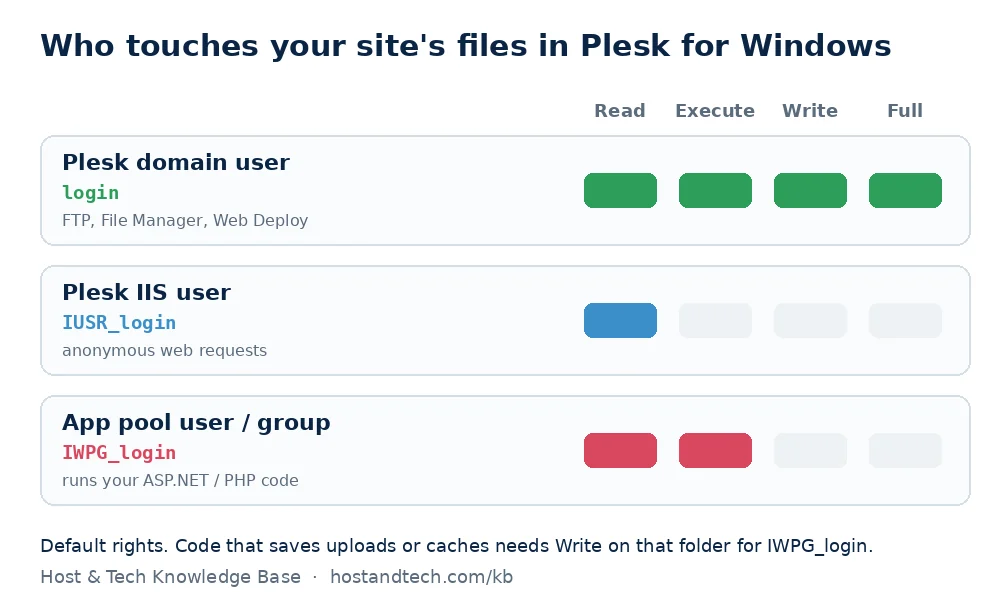
Plesk for Windows creates several Windows accounts for each site and gives each one different rights on C:\Inetpub\vhosts\example.com:
| Account | What it does | Default rights |
|---|---|---|
Plesk domain user (login) |
FTP, File Manager, Web Deploy | Full control |
Plesk IIS user (IUSR_login) |
Anonymous web requests | Read |
Application pool user (IWPD_n(login)) and group (IWPG_login) |
Runs your code (ASP.NET, PHP via FastCGI) | Read and execute |
You upload files as the domain user, so uploads work. Your code runs as the application pool user, so the moment it tries to save an upload, write a cache file or create a log, Windows says no. That split is the whole story behind most of these errors.
The other common cause is files copied onto the server over RDP. Files copied from another folder can keep their old permissions instead of inheriting the site’s, and files unpacked by an Administrator may be owned by that Administrator. Plesk’s accounts then can’t touch them at all, which is when you see 401.3 or errors on files that worked before.
How to fix Access to the path is denied
Fix 1: Grant write access to one folder in File Manager
This is the safest fix: give write access only where the application needs it (an uploads folder, App_Data, a cache or logs folder).
- In Plesk, go to Websites & Domains > example.com > File Manager.
- Find the folder, open its menu (the three dots or the arrow next to the name) and choose Change Permissions.
- Select Application pool group (IWPG_login) in the list of users.
- Tick Modify (it includes Write) in the Allow column and click OK.
Changes apply to the folder and, by inheritance, to everything inside it. If you don’t see Change Permissions, your hosting plan doesn’t allow permission management; ask your host to change it for you or to enable it.
Fix 2: Turn on Additional write/modify permissions
Some applications write all over their own folder (WordPress updating itself, CMS installers, older ASP.NET apps). For those, Plesk has a site-wide switch:
- Go to Websites & Domains > example.com > Hosting & DNS > Hosting (older Plesk versions: Hosting Settings).
- Tick Additional write/modify permissions and click OK.
Warning: this lets the application pool write to the whole document root. If the site is compromised, an attacker can then change any file in it. Prefer Fix 1 for sites where you know which folders need writing, and keep the software up to date if you use this switch.
Fix 3: Repair the site’s permissions (server admins)
If files were copied in over RDP, or permissions were changed by hand and nothing works now, put the Plesk defaults back. Connect over RDP, open PowerShell as Administrator and run:
plesk repair fs example.com -yIf that reports problems it can’t fix, rebuild the site’s security settings completely:
& "$env:plesk_cli\repair.exe" --repair-webspace-security -webspace-name example.comBoth reset the permissions to Plesk’s defaults, so any custom write access you granted (Fix 1) has to be added again afterwards. The same repair is in Plesk under Tools & Settings > Diagnose & Repair.
Fix 4: Grant the permission from the command line
When you manage many folders or need to script it, icacls does the same as Fix 1. This grants Modify to the application pool group on App_Data and everything below it:
icacls "C:\Inetpub\vhosts\example.com\httpdocs\App_Data" /grant "IWPG_login:(OI)(CI)M"Replace login with the subscription’s system user name (shown under Websites & Domains > Hosting & DNS > Hosting). (OI)(CI) makes files and subfolders inherit it. Check the result with icacls and the folder path on its own.
Fix 5: Check for a locked or read-only file
If the folder permissions look right and only one file fails, the file itself may be the problem. Clear the read-only attribute in File Manager or with attrib -r, and check that no process holds it open. ASP.NET apps lock their DLLs while running, which is why deployments fail with “being used by another process”; deploying an ASP.NET Core app in Plesk shows the app_offline.htm way around it.
How to prevent it
- Upload as the domain user. Use FTP, Web Deploy or Plesk File Manager instead of copying files over RDP, so new files get the right permissions automatically.
- Grant write access narrowly. Only the folders the app writes to, and only to
IWPG_login. Never give Full control to Everyone; it “works” and turns a small bug into a hacked site. - Write it down. Keep a short list of the folders you opened up per site. A future
plesk repair fsresets them, and the list makes it a two-minute job. - Watch the 503s too. A wrong permission on the site’s
web.configcan also stop the application pool; see Plesk Windows 503 Service Unavailable.
New to Plesk on Windows? Accessing Plesk on Windows Server covers the basics, and web.config redirects in Plesk covers the other file most Windows sites end up editing. If you’d like a server where we look after this kind of thing, see our VPS plans.
Frequently Asked Questions
Which user needs write permission in Plesk for Windows?
The application pool group, shown in File Manager as Application pool group (IWPG_login). Your ASP.NET or PHP code runs as that account, so it needs Modify rights on any folder the code writes to.
What does Additional write/modify permissions do in Plesk?
It gives the site’s application pool write access to the whole document root. It fixes most permission errors at once but is less secure than granting write access only to the folders that need it.
Why do I get Access to the path is denied after copying files over RDP?
Files copied in over RDP can keep the wrong owner and permissions instead of inheriting the site’s. Run plesk repair fs for the domain to reset them to the Plesk defaults, then re-grant any custom write access.
How do I fix HTTP Error 401.3 Unauthorized in Plesk?
The IIS user can’t read the file because of its permissions. Repair the site’s permissions with plesk repair fs, or upload the file again through FTP or File Manager so it inherits the right rights.
Can I change file permissions in Plesk without RDP?
Yes. Use Change Permissions in Plesk File Manager on the folder. If the option is missing, your plan doesn’t allow permission management and your host needs to enable it or make the change.