
Overview
“508 Resource Limit Is Reached” means your hosting account hit one of its CloudLinux limits for a moment and the server refused new requests instead of slowing everyone else down. The fix depends on which limit it was, and cPanel tells you: open Metrics > Resource Usage, look at the fault counts, and deal with that one limit only.
This guide is for shared and reseller hosting customers who see the 508 page, or a plain 503, on a site that mostly works. You’ll be able to name the limit that faulted, find the request or script behind it, and decide whether a code fix, a cache or a bigger plan is the right answer. Some servers show a 503 instead of a 508 for the same event, so treat both the same way.
What causes the 508 Resource Limit Is Reached error
CloudLinux puts every cPanel account in its own container (an LVE) with fixed ceilings. A 508 is logged as a fault against one of these:
| Limit | What it caps | Usual culprit |
|---|---|---|
| EP (entry processes) | Simultaneous requests entering PHP or CGI | Slow pages, bots, admin-ajax storms |
| CPU | Processor time, where 100% is one core | Heavy plugins, unindexed queries, crawlers |
| Memory (PMEM) | RAM for all your processes | Import jobs, page builders, leaks |
| IO and IOPS | Disk speed and operations | Backups, big logs, uncached reads |
| NPROC | Number of processes | Stuck cron jobs, runaway scripts |
EP is the most common by far, because it counts requests waiting at the same moment. A page that takes 4 seconds to build lets only a few visitors per second in before the limit is full, even if the site is small.
How to fix the 508 error
Fix 1: Find out which limit faulted
- Log in to cPanel and open Resource Usage in the Metrics section.
- On the Current Usage tab, pick a timeframe that covers the outage. Graphs show your average usage in green and the plan limit in red, with fault markers where you crossed it.
- In the hourly table, the F (Faults) column counts how many times each limit was exceeded in that hour. The resource with faults is your cause.
- Open the Snapshots tab. Each fault saves the running processes, the HTTP requests and the MySQL queries at that moment, which is usually enough to name the guilty script or URL.
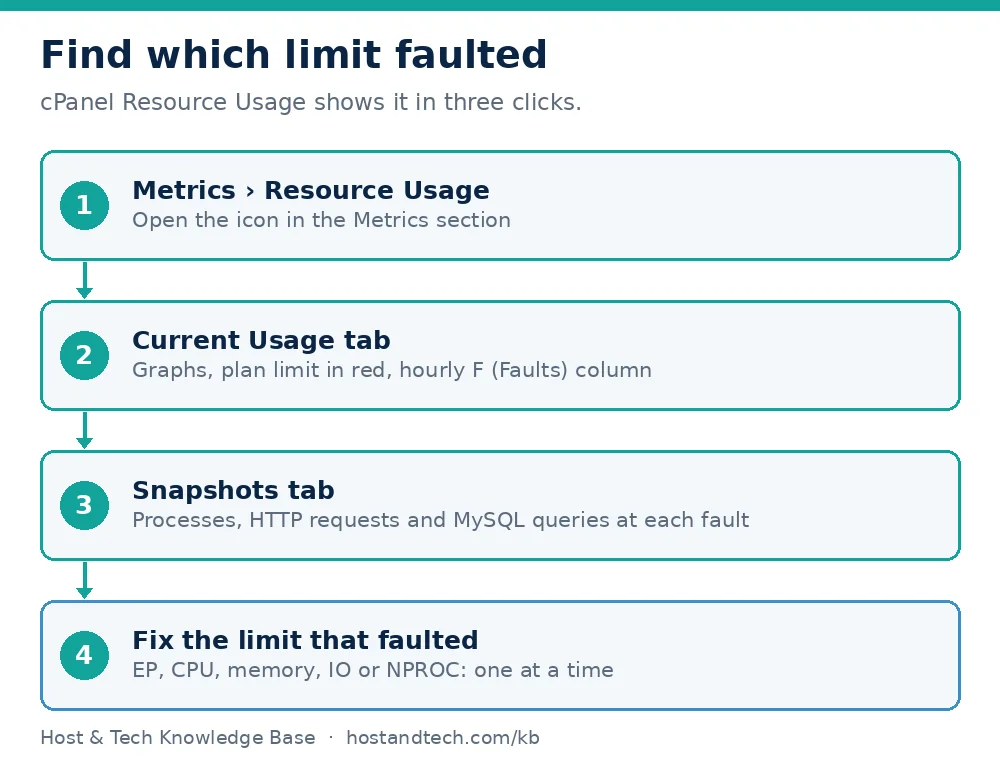
Do this before changing anything. Raising an entry process limit does nothing for an account that is CPU bound, and it is the first thing most people ask their host for.
Fix 2: Entry processes (EP) faults
Make each request finish faster, so fewer are open at once. Turn on full page caching (LiteSpeed Cache on LiteSpeed servers, or your caching plugin’s page cache elsewhere). Then check for a request flood. With SSH access, this lists the busiest URLs in your access log:
awk '{print $7}' ~/access-logs/example.com | sort | uniq -c | sort -rn | head -15Look for wp-login.php, xmlrpc.php or admin-ajax.php near the top. Without SSH, use Metrics > Raw Access and download the log. If a bot is hammering one URL, block its address with the cPanel IP Blocker. To shut off the XML-RPC endpoint on a site that doesn’t use it, add this to .htaccess:
<Files xmlrpc.php>
Require all denied
</Files>
Fix 3: CPU faults
CPU faults come from work, not traffic. The Snapshots tab shows which process or MySQL query was running. On WordPress, deactivate plugins one at a time on a quiet hour and watch the CPU line. Slow queries are the other common cause; the MySQL slow query log guide shows how to find them if you manage your own server. For front-end work, see how to speed up your WordPress site.
One fix worth doing on almost every WordPress site: WP-Cron runs on visitor requests and can pile up under load. Switch it off in wp-config.php:
define( 'DISABLE_WP_CRON', true );Then add a real job in cPanel under Advanced > Cron Jobs, every 15 minutes. Run which php over SSH if /usr/local/bin/php is not right on your server:
*/15 * * * * /usr/local/bin/php /home/USERNAME/public_html/wp-cron.php > /dev/null 2>&1Fix 4: Memory (PMEM) faults
Memory faults mean many PHP processes add up to more than your plan’s RAM, or one process ballooned during an import, backup plugin or image regeneration. Run those jobs one at a time and outside busy hours. Raising memory_limit in MultiPHP INI Editor only helps when a single request is being killed for its own size; it does nothing if the total is what’s over.
Fix 5: IO and IOPS faults
Disk faults usually trace back to a backup plugin running at midday, oversized error logs or uncached database reads. Schedule backups for the night, empty a runaway error_log (see cPanel error logging) and turn on object or page caching. Also check your inode usage, since a folder with hundreds of thousands of cache files slows every disk operation.
Fix 6: Know when the plan is simply too small
If faults keep appearing during ordinary daytime traffic and the Snapshots show normal, healthy requests, the site has outgrown its limits. That is a sizing question, not a bug. The shared hosting resource limits guide explains what each limit means in practice, and moving from shared hosting to a VPS covers the next step. Our VPS plans have no per-account LVE ceilings, and our help centre can look at the fault history on your account.
How to prevent it
- Keep full page caching on for anonymous visitors. It is the single biggest EP saver.
- Check Resource Usage weekly for a month after any new plugin or campaign. Fault counts rise before customers notice.
- Protect
wp-login.phpandxmlrpc.php; the WordPress hardening guide covers rate limiting. - Move heavy jobs (backups, imports, image regeneration) to off-peak cron jobs.
If you administer the server yourself and have CloudLinux, lveinfo --user=USERNAME --period=1d shows the same fault data from the command line, and lvectl limits USERNAME prints the current ceilings. Only raise a limit after you know which one is faulting.
Frequently Asked Questions
What does 508 Resource Limit Is Reached mean?
Your hosting account exceeded a CloudLinux limit such as entry processes, CPU, memory or disk I/O, so the server refused new requests for that moment. Other accounts on the server are unaffected. The Resource Usage page in cPanel shows which limit was hit.
Is a 508 error my host’s fault or my site’s?
It’s a protection working as designed, but the cause is almost always on the site: slow pages, bot traffic or a heavy plugin. Check Resource Usage and the Snapshots tab before asking for a bigger plan.
How do I check my resource usage in cPanel?
Open cPanel, go to the Metrics section and click Resource Usage. The Current Usage tab shows graphs and an hourly Faults column, and the Snapshots tab lists the processes, HTTP requests and MySQL queries captured at each fault.
Will raising the entry process limit fix a 508?
Only if entry processes are the limit that faulted. If CPU, memory or I/O is the problem, a higher EP limit changes nothing. Read the fault breakdown first, then fix or raise that specific resource.
Why do I get 503 instead of 508?
Depending on the web server and handler, the same limit event can surface as a 503 Service Unavailable. The diagnosis is identical: check cPanel Resource Usage for faults around the time of the error.