
Overview
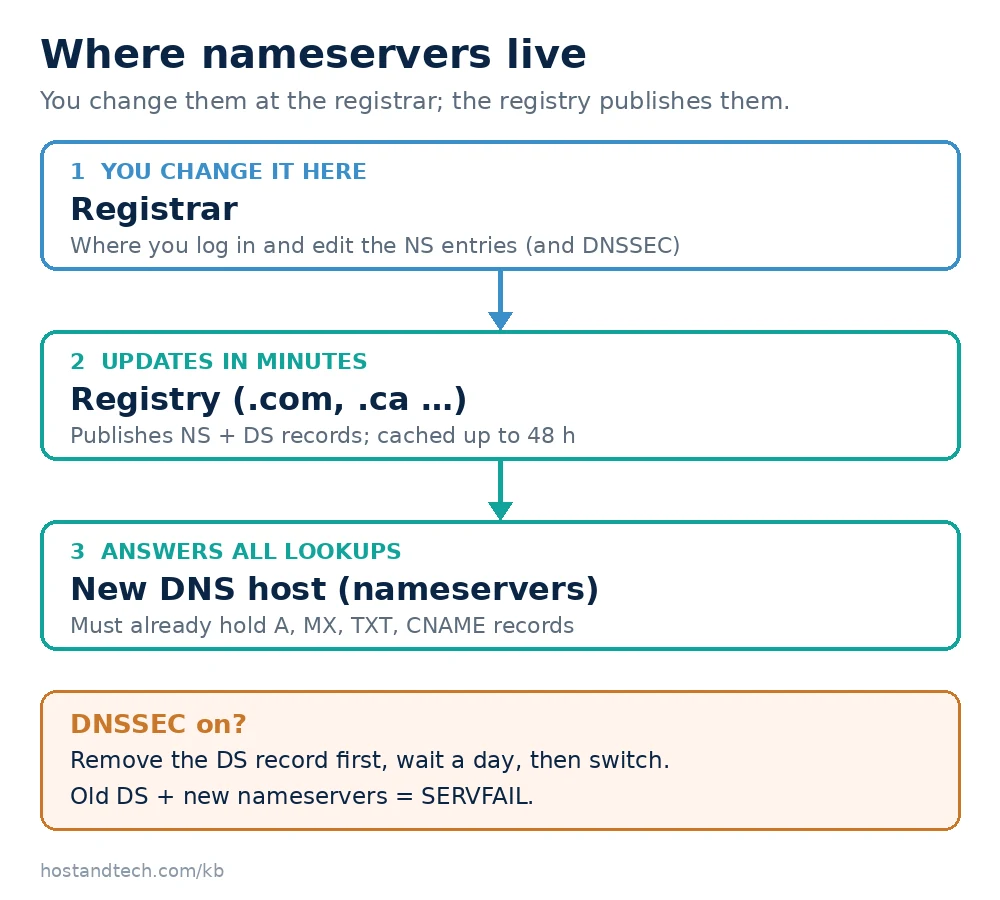
To change nameservers, log in to the company where your domain is registered (not necessarily your host), open the domain’s nameserver settings, replace the old entries with the new ones, and save. Before you do, recreate every DNS record at the new DNS host, especially the MX and TXT records for email, and switch off DNSSEC. The registry usually updates within minutes, and the change reaches most of the internet within a few hours; allow up to 48.
This guide is for anyone moving a domain’s DNS to a new host, Cloudflare or back to their registrar. You’ll know where to make the change, what to copy first so nothing stops working, and how to check the result yourself instead of waiting. If you only need to point your website at a new server and your DNS already works, you don’t need to change nameservers at all: edit the A record instead (see A, CNAME and MX records explained). If you want to move the domain registration itself to a different company, that is a separate process: see how to transfer a domain name to a new registrar.
Prerequisites
- Login to the registrar account that holds the domain.
- The new nameserver names, usually two to four hostnames such as
ns1.newhost.net. Your new host lists them in its welcome email. - Access to the current DNS zone, so you can copy its records.
Step-by-Step: Change Nameservers
Step 1: Find your registrar and current nameservers
whois example.com | grep -iE 'registrar:|name server'
dig NS example.com +short
The Registrar: line tells you where to log in. The nameservers show where your DNS lives today. For .ca domains the registrar is the CIRA-certified company you bought from; the process below is the same.
Step 2: Copy every DNS record to the new DNS host
When the nameservers change, the internet starts reading DNS only from the new host. Any record you didn’t recreate there simply stops existing. Before switching, compare the old and new zones and copy across:
AandAAAArecords for the domain,wwwand any subdomains.MXrecords, and themailrecord they point to.TXTrecords: SPF, DKIM (oftendefault._domainkey), DMARC and site verification codes. See how to create an SPF record.CNAMErecords for services such as Microsoft 365 (autodiscover) or a store platform.
In cPanel, the Zone Editor lists every record in one table (Zone Editor guide). I screenshot it or export it before every nameserver change; that one list is what saves the day when someone says email stopped.
Step 3: Switch off DNSSEC if it’s on
dig DS example.com +shortIf this returns anything, DNSSEC is active. Remove the DS record (usually a “DNSSEC” setting at the registrar) and wait at least a day before changing nameservers. Otherwise validating resolvers try to check the new host’s answers against the old host’s keys, fail, and return SERVFAIL: the domain disappears for a large share of visitors even though every record is correct. Turn DNSSEC back on at the new host once the move has settled.
Step 4: Change the nameservers at the registrar
- Log in to the registrar and open the domain.
- Find Nameservers (sometimes under DNS or Manage domain) and choose to use custom nameservers.
- Delete the old entries and enter the new ones exactly as given, at least two.
- Save. Some registrars ask you to confirm by email.
Resellers who want nameservers under their own brand (ns1.yourbrand.com) need glue records registered first; see setting up private nameservers.
Step 5: Check the change at the registry
You don’t have to wait for propagation to see whether the change worked. Ask the registry’s own servers. For .com and .net:
dig NS example.com @a.gtld-servers.net +norecThe AUTHORITY SECTION should list your new nameservers within minutes. For other extensions, dig +trace NS example.com follows the chain from the root and shows what the registry hands out. Then confirm the new host answers correctly:
dig A example.com @ns1.newhost.net +short
dig MX example.com @ns1.newhost.net +short
Step 6: Wait out the old nameserver records
Resolvers that looked up your domain recently keep the old nameservers cached until the record expires. For .com that’s up to 48 hours, set by the registry and not by you, which is why a nameserver change takes longer to reach everyone than an A record change. Keep the old DNS zone and hosting running during that window. DNS propagation time explains the caching in more detail.
Common Issues & Troubleshooting
The registrar rejects the nameservers as invalid
Cause: a typo, a trailing dot, or nameserver hostnames that aren’t registered at the registry (common with brand-new private nameservers).
Fix: copy the names exactly from your host, without spaces or dots at the end. For private nameservers, register the glue records (host names and IPs) at the registrar first, then set them.
The website works but email stopped
Cause: the MX, mail or SPF/DKIM records weren’t recreated at the new DNS host.
Fix: add the missing records from your Step 2 copy. Mail servers retry for a few days, so most delayed messages still arrive once the records exist. Email not receiving or sending covers other causes.
SERVFAIL for some visitors after the change
Cause: DNSSEC was still on when the nameservers changed, so validating resolvers reject the new answers.
Fix: remove the DS record at the registrar immediately. Recovery takes as long as the DS record’s TTL. If the new host supports DNSSEC, enable it there and add its new DS record instead.
Some people still see the old site days later
Cause: their resolver or device cached the old records, or the old DNS host still has a record for a subdomain you forgot.
Fix: confirm the registry shows the new nameservers (Step 5). If it does, the rest is caching; flushing the local DNS cache or trying mobile data confirms it. See domain not resolving.
Moving to Host & Tech as part of a hosting change? Migrating from shared hosting to a VPS shows the order to do it in, and our help centre can confirm the nameservers for your hosting plan.
Frequently Asked Questions
How long does it take for a nameserver change to work?
The registry usually updates within minutes, and most visitors see the change within a few hours. Because resolvers can cache the old nameservers for up to 48 hours for .com domains, allow two days before treating anything as broken.
Where do I change my nameservers, at my host or my registrar?
At your registrar, the company the domain is registered with. Your host gives you the nameserver names but can only change them if it’s also your registrar. Run whois on the domain and look at the Registrar line if you’re unsure.
Will changing nameservers affect my email?
Only if the new DNS host is missing your email records. Copy the MX, mail, SPF, DKIM and DMARC records to the new host before you switch, and email keeps working throughout.
Should I change nameservers or just the A record?
If you’re only moving the website and your current DNS works, change the A record: it’s faster and touches nothing else. Change nameservers when you want a different company to manage all of the domain’s DNS.
Do I need to turn off DNSSEC before changing nameservers?
Yes, if it’s on. Remove the DS record at the registrar and wait a day before switching, otherwise validating resolvers will fail to resolve the domain. Enable DNSSEC again at the new DNS host afterwards.