
Overview
To make a cPanel backup, open Files > Backup in cPanel and click Download a Full Account Backup. cPanel packs your website files, databases, mailboxes, email forwarders and DNS zone into one .tar.gz file, which you then download and keep somewhere other than the server. You can restore parts of it yourself (files, a database, forwarders) on the same page. A full backup can only be restored by your host, from WHM.
This guide is for anyone on cPanel shared hosting who wants a copy of their account they control: before a big change, before moving hosts, or simply on a schedule. It also covers pulling a single database or folder out of a full backup, which most people don’t know they can do, and automating the backup with a cron job.
Prerequisites
- Your cPanel login.
- Free disk space in the account roughly equal to the size of the backup. cPanel writes the archive inside your own quota before you download it.
- Somewhere to keep it: your computer, an external drive or cloud storage. A backup that only exists on the same server isn’t much of a backup.
Step-by-Step: Back Up and Restore Your cPanel Account
Step 1: Check your disk usage first
Look at Disk Usage in the cPanel sidebar. If you’re close to the limit, the backup can fail halfway because there’s no room to write the archive. Delete old backup files from your home folder, empty large mailboxes, or see reducing inode usage in cPanel if it’s the file count that’s near the limit.
Step 2: Generate a full backup
- In cPanel, open Files > Backup.
- Under Full Backup, click Download a Full Account Backup.
- Leave Backup Destination on Home Directory.
- Enter your email address so cPanel tells you when it’s finished, then click Generate Backup.
A small site takes a few minutes; an account with years of email can take an hour. When it’s done, the file sits in your home folder (one level above public_html) with a name like backup-11.23.2026_09-30-00_username.tar.gz. Keep the name as it is. If you ever need it restored, the restore reads the username from it.
Step 3: Download it and delete the server copy
Download the file from the same Backup page (it’s listed under Backups Available for Download) or from File Manager. For files over a couple of gigabytes, a browser download that drops halfway is common; use SFTP instead. Transferring files with SCP shows the command.
Then delete the archive from the server in File Manager. Left there, it eats your disk quota, and the next full backup includes the previous one, so each backup gets bigger than the last.
Step 4: Make partial backups when you only need one part
Under Partial Backups on the same page you can download:
- Home Directory: your files and the mail stored in your account, as a
.tar.gz. - MySQL Databases: one
.sql.gzfile per database. Take one of these before any plugin or theme update. - Email Forwarders and Email Filters: small files, per domain.
Partial backups are quicker, smaller and, unlike a full backup, you can restore them yourself.
Step 5: Restore files, a database or forwarders yourself
On the Backup page, under Restore, choose the matching option (Restore a Home Directory Backup, Restore a MySQL Database backup, or the forwarder and filter options), select the file and click Upload.
Warning: restoring a home directory backup overwrites the files that are there now with the versions in the backup. Download a fresh backup of the current state first if there’s anything newer you might want back.
Step 6: Pull one database or folder out of a full backup
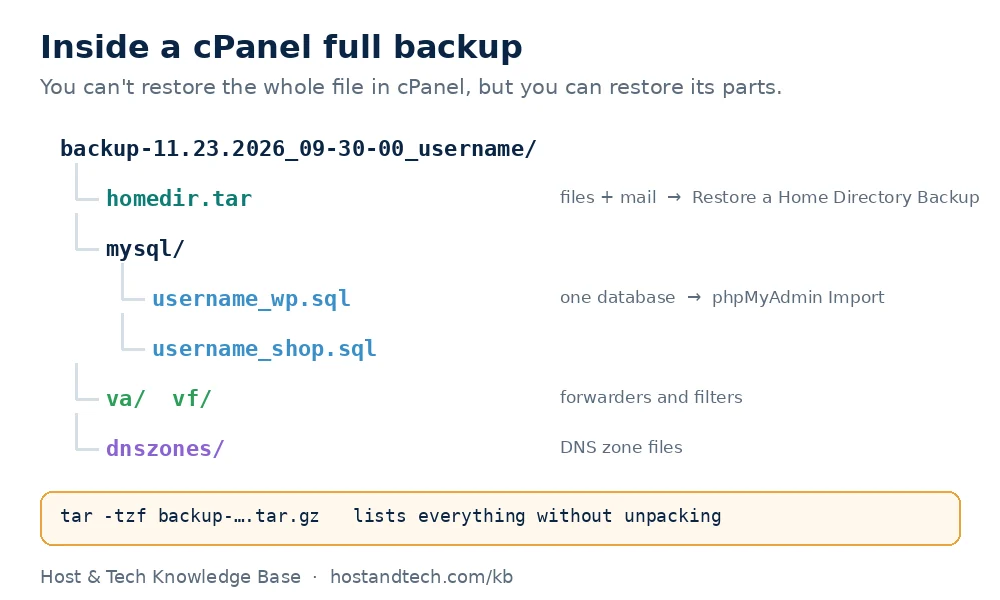
You can’t upload a full backup to the Restore options, but you don’t need to. A full backup is an archive of smaller pieces: the website files are in homedir.tar and each database is a separate .sql file in the mysql folder. On your own computer (macOS and Linux have tar; on Windows 10 and 11 it’s built in too):
tar -tzf backup-11.23.2026_09-30-00_username.tar.gz | grep -E 'mysql/|homedir.tar'
tar -xzf backup-11.23.2026_09-30-00_username.tar.gz backup-11.23.2026_09-30-00_username/mysql/username_wp.sql
The first command lists the databases and the home directory archive; the second extracts one database. Import that file in phpMyAdmin (select the database, then Import), or extract homedir.tar and upload only the folder you lost.
Step 7: Restore a full backup
Restoring a whole account from a full backup is done in WHM, which only your host has access to on shared hosting. Upload the backup file to your home folder (or keep it there), then open a ticket in our Help Centre with the file name and tell us whether the current account should be replaced. Moving the account to a different server or host? See migrating from shared hosting to a VPS for the full process.
Step 8: Automate it with a cron job
cPanel’s UAPI can start the same full backup from a cron job. In Advanced > Cron Jobs, add this to run every Sunday at 3 a.m. (server time), using your own email address:
0 3 * * 0 /usr/bin/uapi Backup fullbackup_to_homedir email=you@example.com > /dev/null 2>&1To stop old backups filling your quota, add a second job that deletes archives older than 15 days:
30 4 * * 0 find "$HOME" -maxdepth 1 -name 'backup-*.tar.gz' -mtime +15 -deleteThat keeps two weekly backups on the server. Still download one now and then: backups on the same server as the site don’t protect you if the server itself fails. Setting up a cron job in cPanel explains the schedule format.
Verify the Backup Is Usable
A backup you’ve never opened is a guess. Once in a while, list its contents to check the archive isn’t damaged and that your databases are in it:
tar -tzf backup-11.23.2026_09-30-00_username.tar.gz > /dev/null && echo "archive OK"
tar -tzf backup-11.23.2026_09-30-00_username.tar.gz | grep -c '\.sql$'
The second number should match the number of databases in cPanel’s MySQL Databases. cPanel’s documentation notes that account-level filters from Email Filters aren’t stored in the backup, so keep a note of any complex filters you rely on.
Common Issues & Troubleshooting
The backup never finishes or the email says it failed
Cause: The account is near its disk quota, so cPanel can’t write the archive (or a database lock file during the backup).
Fix: Free up space (old backups, large mailboxes, caches) and run it again. If you can’t get below the limit, ask us to make the backup from WHM.
The download stops partway or the file won’t open
Cause: The browser download was interrupted, leaving a truncated archive. tar then reports “Unexpected EOF in archive”.
Fix: Download it again over SFTP, which can resume, and test it with tar -tzf before deleting the server copy.
The restore page rejects my full backup
Cause: The Restore options only accept partial backups. A full backup can’t be restored from cPanel.
Fix: Extract the part you need (Step 6) and restore that, or ask us to restore the full backup (Step 7).
My WordPress site needs a backup before an update
Cause: Not an error, but the most common reason people need a restore.
Fix: Take a MySQL partial backup plus a home directory backup, or follow backing up a WordPress site for plugin-based options.
Running out of room for backups regularly is a sign the account has outgrown its plan; shared hosting resource limits explains what to check, and our cPanel shared hosting plans list the disk space on each.
Frequently Asked Questions
What does a full cPanel backup include?
Your home directory (website files and the mail stored in your account), all MySQL databases, email forwarders and the DNS zone for your domains. Account-level email filters are not stored, so note any important ones separately.
Can I restore a full cPanel backup myself?
No. cPanel’s Restore options only take partial backups such as a home directory, a database or email forwarders. A full backup has to be restored by your host in WHM, so open a support ticket with the file name.
Where is my cPanel backup file saved?
With the Home Directory destination, the file is saved in your account’s home folder, one level above public_html, with a name like backup-date_time_username.tar.gz. Download it, then delete it from the server.
How do I restore just one database from a full cPanel backup?
Extract the full backup on your computer and open its mysql folder, where each database is a separate .sql file. Import that file into the database in phpMyAdmin.
How often should I back up my cPanel account?
At least weekly for a site that changes, and always before updates, plugin changes or a move. A weekly cron job plus a downloaded copy every month covers most small business sites.