
Overview
To set up a cron job in cPanel, open Advanced > Cron Jobs, choose a schedule, and enter a command that uses full paths, for example /usr/local/bin/php /home/username/public_html/cron.php. Click Add New Cron Job and it runs on the server’s clock from then on.
This guide is for shared hosting customers who need a script to run on its own: a WordPress or WooCommerce scheduler, a Laravel schedule:run, a nightly backup or a cleanup script. Most cron jobs that “don’t work” fail for one of four reasons: a relative path, the wrong PHP version, the server’s time zone, or output that nobody reads. Each one is covered below, with commands you can paste and adjust.
Prerequisites
- A cPanel login for the account that owns the script.
- The full path to the script. Your home directory is shown under General Information on the right of the cPanel home page (usually
/home/username). - The PHP version the site uses, from Software > MultiPHP Manager, if the script is PHP.
- Optional but handy: Advanced > Terminal or SSH, to test the command by hand before scheduling it.
Step-by-step: create a cron job in cPanel
Step 1: Find the right PHP binary and paths
Cron runs with a minimal environment and starts in your home directory, so every program and file needs its full path. For PHP there are two choices:
/usr/local/bin/phpruns the server’s default PHP version./usr/local/bin/ea-php83(or ea-php81, ea-php82 and so on) runs one specific version. Use this when your site runs a different version from the server default, which is common after an upgrade in MultiPHP Manager.
The Cron Jobs page lists “PHP command examples” with your username already filled in. In Terminal you can confirm what’s installed and which version each binary runs:
ls /usr/local/bin/ | grep ea-php
/usr/local/bin/ea-php83 -v
pwd
Test the full command by hand before you schedule it. If it fails in Terminal, it fails in cron too, and the error is far easier to read here.
Step 2: Set the cron email
At the top of the Cron Jobs page, enter an address in Cron Email and click Update Email. Cron mails anything the command prints, including errors. Keep this on while you test a new job, then silence that job (Step 4) so you don’t get an email every 15 minutes.
Step 3: Choose the schedule
Pick an entry from Common Settings, or fill in the five fields yourself. They are read left to right as minute, hour, day of month, month and weekday:
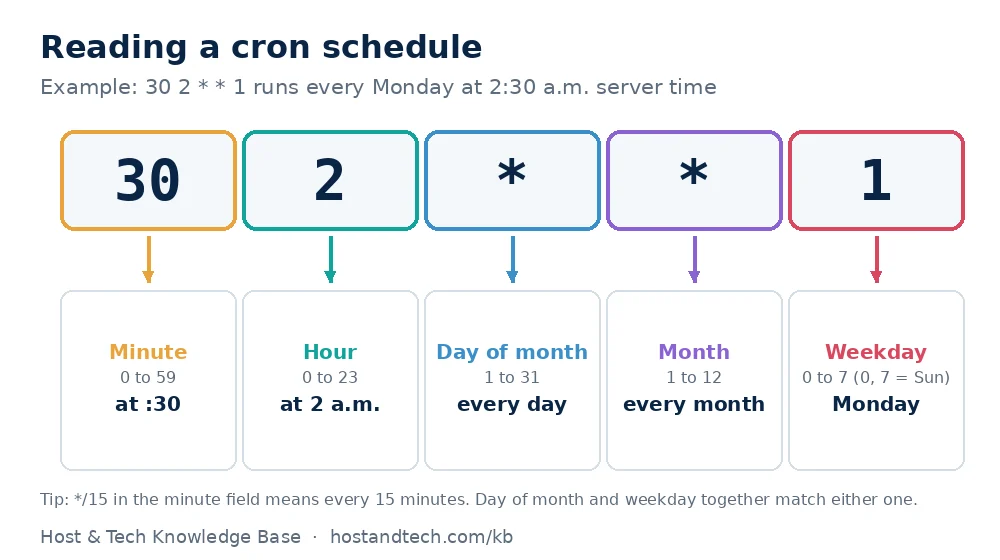
| Schedule | Fields | Runs |
|---|---|---|
| Every 15 minutes | */15 * * * * |
:00, :15, :30, :45 |
| Every 6 hours | 0 */6 * * * |
00:00, 06:00, 12:00, 18:00 |
| Daily at 3:00 | 0 3 * * * |
Once a day, server time |
| Mondays at 2:30 | 30 2 * * 1 |
Weekday 0 or 7 is Sunday |
| First of the month | 0 0 1 * * |
Midnight on the 1st |
Two things trip people up. The times are the server’s time zone, not yours: run date in Terminal to see it and adjust the hour. And if you fill in both day of month and weekday, cron runs when either matches. 0 3 1 * 1 runs on the 1st of the month and again on every Monday.
Step 4: Enter the command
Paste the command into the Command field. Some common ones:
A PHP script, quiet unless it fails to start:
/usr/local/bin/ea-php83 /home/username/public_html/cron.php >/dev/null 2>&1A PHP script with its output saved to a log (better than email for anything that runs often):
/usr/local/bin/ea-php83 /home/username/public_html/cron.php >> /home/username/logs/cron.log 2>&1WordPress real cron. WordPress normally runs scheduled tasks only when someone visits, so quiet sites miss them and busy sites run them too often. Add define( 'DISABLE_WP_CRON', true ); to wp-config.php, then schedule this every 15 minutes:
cd /home/username/public_html && /usr/local/bin/ea-php83 wp-cron.php >/dev/null 2>&1Laravel’s scheduler, every minute (* * * * *):
cd /home/username/myapp && /usr/local/bin/ea-php83 artisan schedule:run >/dev/null 2>&1A dated backup archive. In a cron command, the percent sign has a special meaning, so each % must be escaped with a backslash. The same command typed in Terminal doesn’t need the backslashes:
tar -czf /home/username/backups/site-$(date +\%F).tar.gz -C /home/username public_htmlOld archives pile up and count against your disk and file limits, so delete them on a schedule as well. If you’re already near the limit, see what inodes are and how to reduce them.
Step 5: Add the job and check the list
Click Add New Cron Job. The job appears under Current Cron Jobs, where Edit and Delete sit next to each line. To pause a job without losing it, edit it and put # in front of the command, or simply delete it and add it again later.
Verify the cron job runs
- Temporarily set the schedule to every minute and log the output to a file, as in Step 4.
- After two minutes, check the log in Terminal:
tail -n 20 ~/logs/cron.log. No file at all usually means the path to the log folder doesn’t exist; create it withmkdir -p ~/logs. - Put the real schedule back once you see the expected output.
For WordPress, Tools > Site Health reports when a scheduled event has failed or is late, which is a quick check that the real cron is doing its job.
Common Issues & Troubleshooting
php: command not found
Cause: the command starts with plain php, and cron’s environment doesn’t have the same search path as your Terminal session.
Fix: use the full binary path, /usr/local/bin/php or /usr/local/bin/ea-php83.
Could not open input file: cron.php
Cause: the script path is relative. Cron starts in your home directory, not in public_html.
Fix: give the full path (/home/username/public_html/cron.php) or cd into the folder first, as in the WordPress example. Scripts that include other files with relative paths need the cd as well.
/bin/sh: /home/username/backup.sh: Permission denied
Cause: the shell script isn’t executable.
Fix: run chmod 750 ~/backup.sh, or call it through the shell: /bin/bash /home/username/backup.sh.
The job runs at the wrong time
Cause: the hour is in server time. Many servers run on UTC, which is seven or eight hours ahead of Vancouver depending on daylight saving time.
Fix: check date in Terminal and shift the hour field. Remember that a UTC server doesn’t move its clock for daylight saving time, so a job at 10:00 UTC runs at 2 a.m. or 3 a.m. Pacific depending on the season.
Runs overlap and the site shows 508 errors
Cause: a job scheduled every minute sometimes takes longer than a minute, so copies stack up and use your account’s process and CPU limits.
Fix: wrap the command in flock, which skips a run while the previous one is still going:
/usr/bin/flock -n /home/username/tmp/cron.lock /usr/local/bin/ea-php83 /home/username/public_html/cron.php >/dev/null 2>&1If 508 errors continue, read how to find the cause of 508 Resource Limit Is Reached. A script that fails silently will usually say why in its PHP error log; enabling error logging in cPanel shows how to turn it on.
Cron Jobs is included on every Host & Tech cPanel hosting plan. If you need jobs every few seconds or long-running workers, that’s a sign the app has outgrown shared hosting and belongs on a VPS.
Frequently Asked Questions
How do I run a cron job every 5 minutes in cPanel?
Set the minute field to */5 and leave the other four fields as *, or choose “Once Per Five Minutes” from Common Settings. Use the full path to PHP and to your script in the command, and add >/dev/null 2>&1 at the end if you don’t want an email each time.
What time zone do cPanel cron jobs use?
They use the server’s time zone, not the one on your computer or in WordPress. Run date in cPanel Terminal to see the server time and set the hour field to match. Servers on UTC don’t change for daylight saving time.
How do I stop cron job emails in cPanel?
Add >/dev/null 2>&1 to the end of the command for that job, or send the output to a log file instead. Clearing the Cron Email field stops the emails for every job on the account.
Why is my cron job not running in cPanel?
The usual causes are a relative path to PHP or the script, the wrong PHP version, a non-executable shell script, or the job running at a different hour than expected because of the server’s time zone. Run the exact command in Terminal first and log the output to a file to see the error.
How often can a cron job run on shared hosting?
Cron can run as often as once a minute, but frequent jobs use your account’s CPU and process limits. Every 5 or 15 minutes is enough for most sites, and flock stops slow runs from overlapping.