
Overview
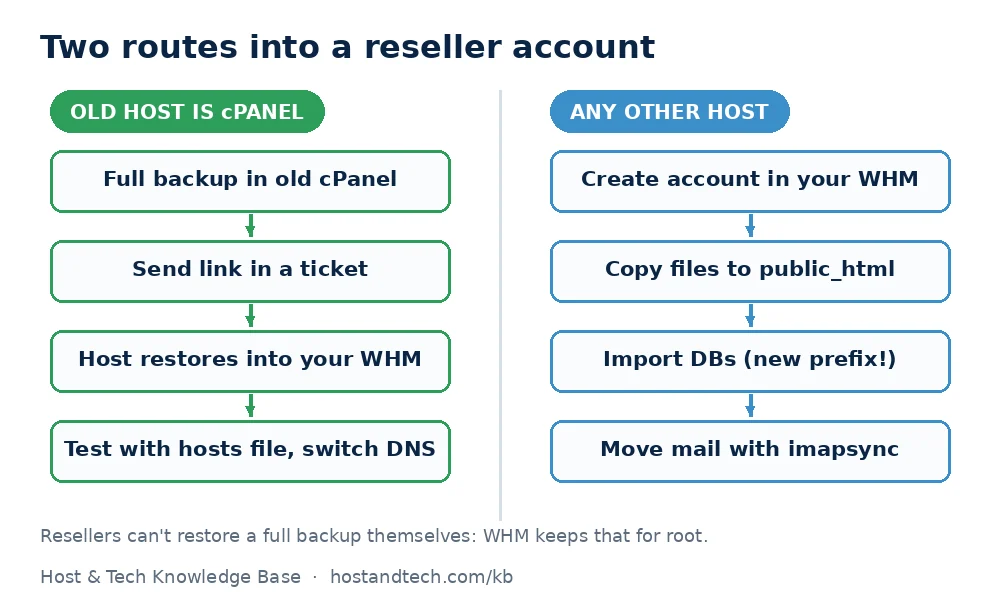
To transfer a cPanel account to your reseller hosting, generate a full backup in the client’s old cPanel and send it to your host to restore. Resellers can’t restore a full backup themselves: WHM only shows the restore tools to root, or to a reseller with “all” privileges, which is effectively root. On Host & Tech reseller plans you open a ticket and we restore the backup straight into your reseller account, so the site, databases, email and DNS zone arrive in one piece.
This guide is for resellers taking on a client whose site lives with another host. It covers the cPanel-to-cPanel route, the manual route for sites coming from Plesk or a non-cPanel host, and the checks that stop email going missing during the switch. Plan for about an hour of your time plus the DNS change.
Prerequisites
- A reseller account with a free account slot and enough disk for the site. Check the client’s disk usage in their old cPanel first.
- The client’s old cPanel login, or a full backup they generated themselves.
- Access to the domain’s registrar or current DNS provider, from the client or delegated to you.
- A hosting package in your WHM that fits the site. Managing multiple clients in WHM covers creating packages.
Step-by-Step: Move the Client’s Site
Step 1: Lower the DNS TTL a day ahead
At the client’s current DNS provider, lower the TTL of the A and MX records to 300 seconds (5 minutes) and wait at least as long as the old TTL, often 4 to 24 hours. When you switch later, visitors and mail servers follow within minutes instead of a day. DNS propagation time explains why this step matters.
Step 2: Check the username and size
A full restore keeps the account’s original cPanel username, and usernames are unique per server. Note the old username (top right of the old cPanel, or the name in the backup file). If an account with that name already exists on our server, we restore it under a new one and tell you.
Check the disk usage in the old cPanel’s sidebar too. The restored account must fit both your reseller disk allowance and the package you’ll put it on.
Step 3: Generate a full backup in the old cPanel
- In the old cPanel, open Files > Backup.
- Under Full Backup, click Download a Full Account Backup.
- Set Backup Destination to Home Directory, enter an email address for the “backup complete” notice and click Generate Backup.
The file appears in the home folder with a name like backup-11.23.2026_14-05-12_clientuser.tar.gz. Don’t rename it. The restore reads the username from the file name. Large accounts can take an hour or more; wait for the email rather than downloading a half-written file.
Note: a backup of an account that is close to its disk quota can fail, because cPanel writes the archive inside the same quota. If it fails, delete old backups and mail or ask the old host to raise the quota for a day.
Step 4: Get the backup restored into your reseller account
Open a ticket in our Help Centre with:
- the domain and the cPanel username from the file name,
- where we can fetch the backup (a download link, or SFTP details for the old account),
- the package from your WHM you want the account on.
We restore it and assign it to your reseller account, so it shows in your List Accounts and counts against your limits like any account you created. Don’t email a multi-gigabyte backup as an attachment; a link or SFTP is faster and doesn’t bounce.
Step 5: Moving from Plesk or a non-cPanel host instead
A cPanel restore only reads cPanel backups. For anything else, rebuild the account by hand:
- In your WHM, open Account Functions > Create a New Account, enter the domain and choose the package.
- Copy the site files into
public_htmlover SFTP. For big sites, have the old host give you a single.tar.gzor.zipand extract it in cPanel File Manager. - Export each database from the old host (phpMyAdmin Export or
mysqldump), create the database and user in cPanel MySQL Databases, and import it. - Create the same mailboxes in cPanel and copy the mail across. Migrating email to a new host shows how to do it with imapsync without losing messages.
The gotcha on this route is database names. cPanel prefixes every database and database user with the account’s username, so shopdb becomes something like clientuser_shopdb. Update the site’s config file (wp-config.php for WordPress) with the new names, or the site shows a database connection error.
For a WordPress-only site, migrating WordPress to a new host has the plugin and manual options.
Step 6: Test before you switch DNS
Find the account’s IP address in WHM > List Accounts, then point the domain at it on your own computer only, by adding a line to your hosts file (/etc/hosts on macOS and Linux, C:\Windows\System32\drivers\etc\hosts on Windows):
203.0.113.25 example.com www.example.comLoad the site, log in to its admin, submit a form and send a test email from webmail. Remove the line when you’re done.
Step 7: Switch DNS and finish up
If the domain will use your private nameservers, change the nameservers at the registrar (setting up private nameservers and changing nameservers cover both sides). If the client keeps DNS elsewhere, update the A record for the domain and www, and the MX and mail records, to the new server.
Then:
- Wait for AutoSSL to issue a certificate. It can only validate after DNS points at the new server, so expect a short certificate warning right after the switch.
- Copy mail again a day later. Messages that reached the old server during propagation won’t be in the backup.
- Keep the old hosting for a week before the client cancels it, in case something was missed.
Common Issues & Troubleshooting
The Transfer or Restore options are missing from my WHM
Cause: Restoring full backups and transferring accounts between servers are root-level functions in WHM. Reseller accounts don’t get them.
Fix: This is normal. Send us the backup through a ticket and we restore it for you (Step 4).
The full backup fails or never sends the email
Cause: The old account is at or near its disk quota, so cPanel can’t write the archive.
Fix: Free space in the old account, or ask the old host for a temporary quota increase or a backup made from their WHM.
Error establishing a database connection
Cause: On a manual move, the database name, user or password in the config file doesn’t match what you created in cPanel, usually because of the username prefix.
Fix: Copy the exact names from cPanel MySQL Databases into the config file and make sure the user is added to the database with All Privileges.
The site still shows the old host after the DNS change
Cause: The old records are still cached (high TTL), the change was made at a DNS provider the domain doesn’t use, or you forgot to remove the hosts file line on your own computer.
Fix: Check with dig +short example.com and dig +short NS example.com, then compare with the IP and nameservers you expect.
Once a few clients are on board, connecting WHMCS to your reseller account automates account creation and billing for new signups. For the bigger picture, see how to start a reseller hosting business.
Frequently Asked Questions
Can a reseller restore a cPanel backup in WHM?
Not by default. Restoring a full backup or cpmove file is a root function, and a reseller only gets it with the “all” privilege, which is effectively root access. Ask your host to restore the backup into your reseller account instead.
Does a full cPanel backup include email and databases?
Yes. A full backup contains the home directory with the website files and mailboxes, the MySQL databases, email forwarders and the DNS zone. Mail that arrives at the old server after the backup isn’t included, so sync mail again after the DNS change.
Will the client’s cPanel username stay the same?
A full restore keeps the original username unless that name is already in use on the new server. In that case the account is restored under a different username, and the database names change with it.
How long does it take to move a site into a reseller account?
The backup and restore usually take under an hour for a typical small business site. The DNS change then takes from a few minutes to a day, depending on the TTL you set beforehand.
Is there downtime when moving a website to a new host?
There doesn’t need to be. The old site keeps running until DNS points at the new server, so with a low TTL and a test through your hosts file first, visitors don’t see an outage.